 PIJO
Screenshot annotation compared: PIJO, ShareX and Snagit
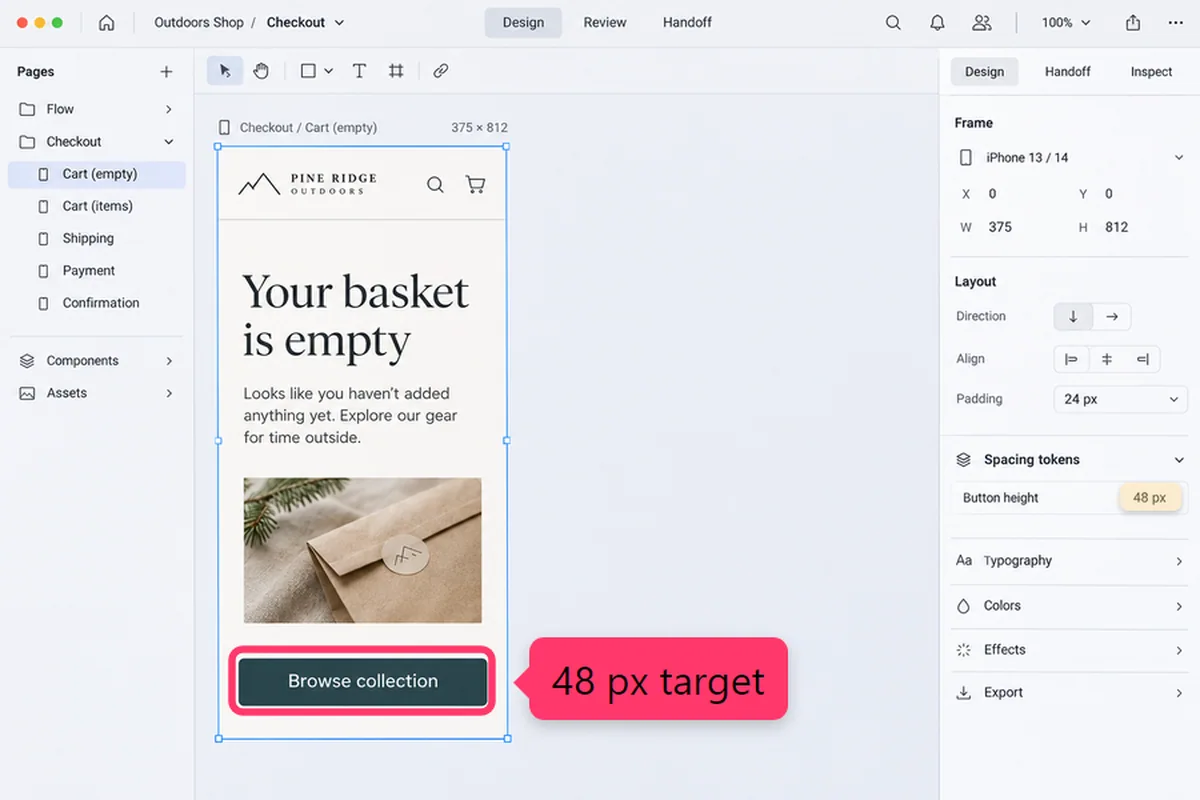
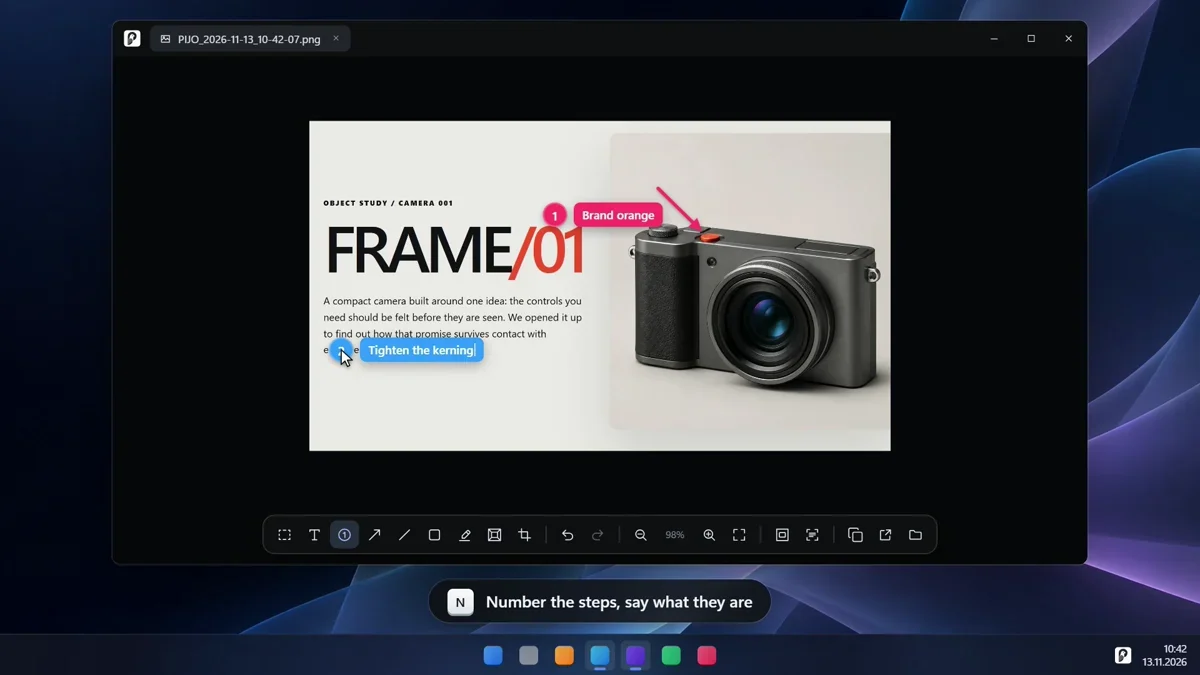
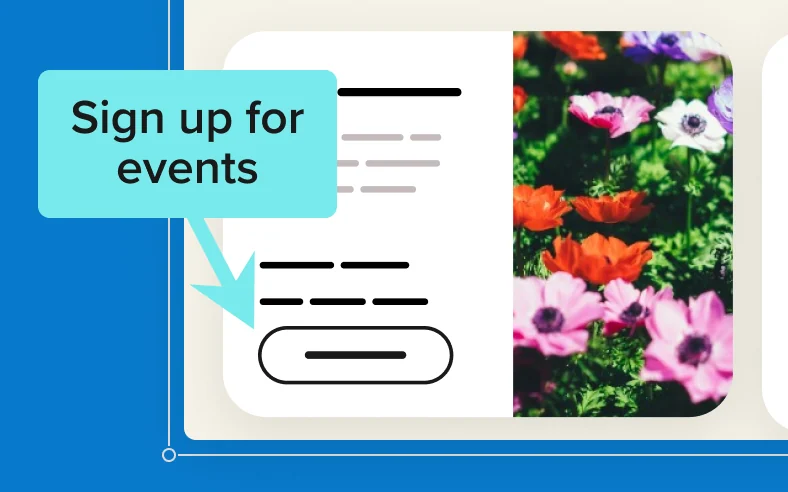
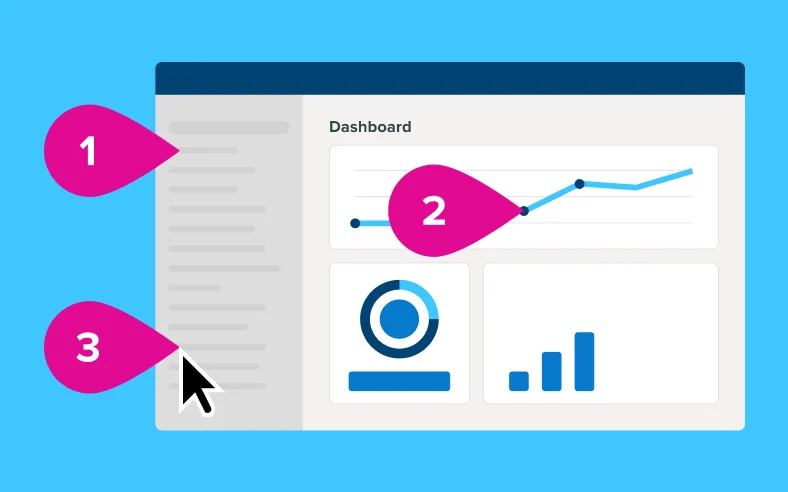
PIJO, ShareX and Snagit all support pointing at a control and marking a sequence. If you make documentation, compare how each handles captions in crowded screenshots and whether you can revise the markup after closing the editor.
Workflow differences
| Tool | Workflow | What to check |
|---|---|---|
| PIJO | Arrows and lines, step markers, text labels, highlights, boxes and spotlight. | Region captions can be edge-mounted or on a dashed leader. Step captions can be dragged away. |
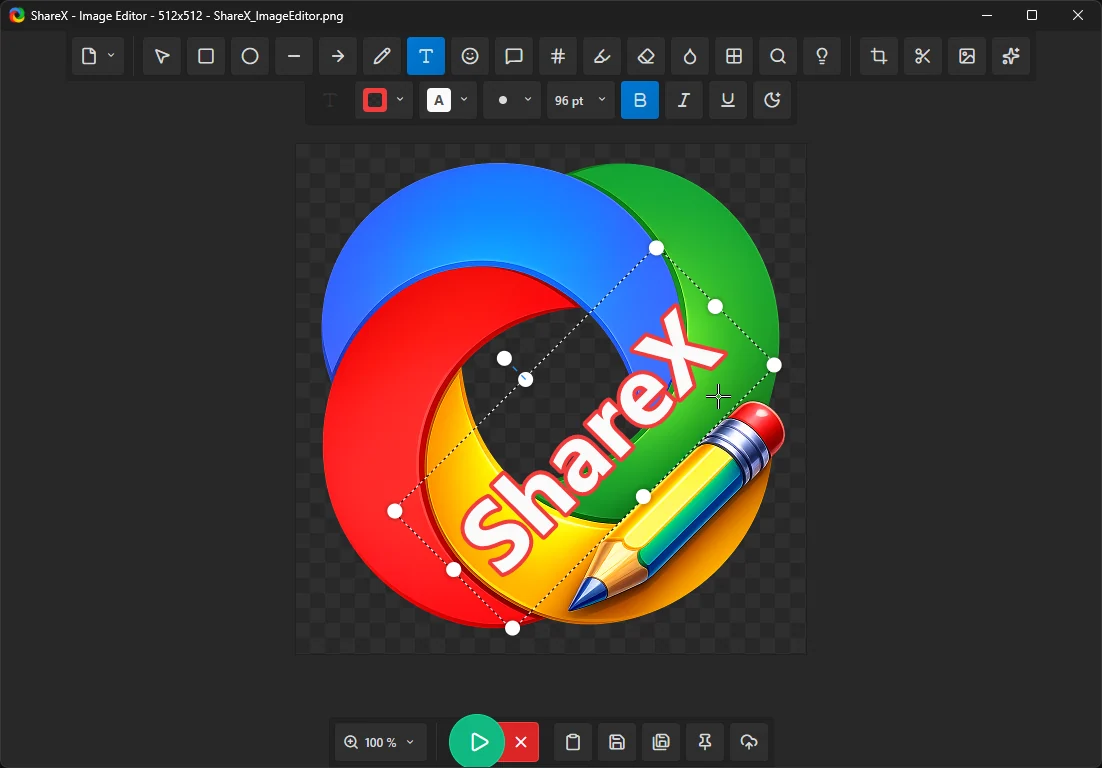
| ShareX | The image editor includes arrows, step markers, text, callouts and spotlight. | Open the capture in the editor and return the result to configured after-capture tasks. |
| Snagit | Step tool, callouts, shapes, arrows, spotlight and reusable quick styles. | Native editable project format for later revision. |
More interface examples
What to try with your own screenshot
Try documenting a settings screen with three actions. Put the note for the middle action in the nearest blank area. Then move the pointer target and check what you have to adjust to keep the instruction accurate.
We make PIJO. The cover is an illustration. The comparison screenshots show PIJO and examples from the named vendors. The workflows use product documentation and the demos shown here.