 PIJO
Screenshot redaction compared: PIJO, Snipping Tool and ShareX
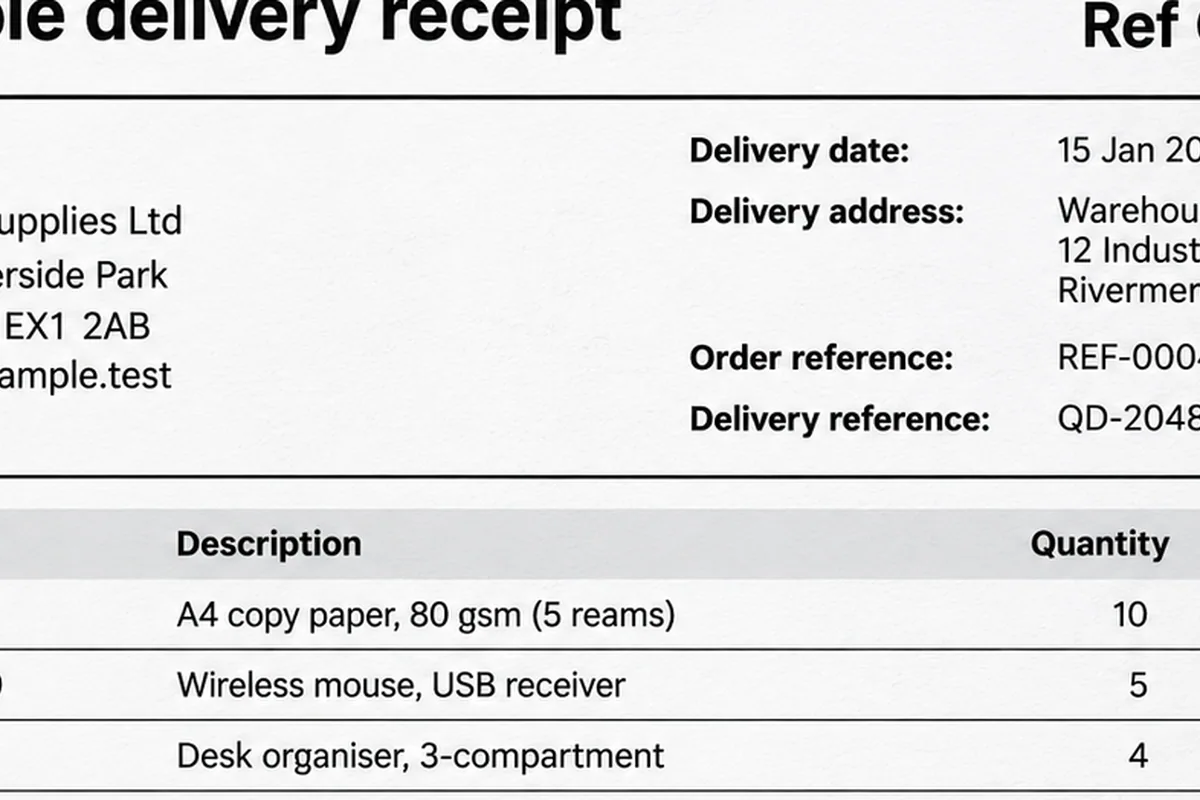
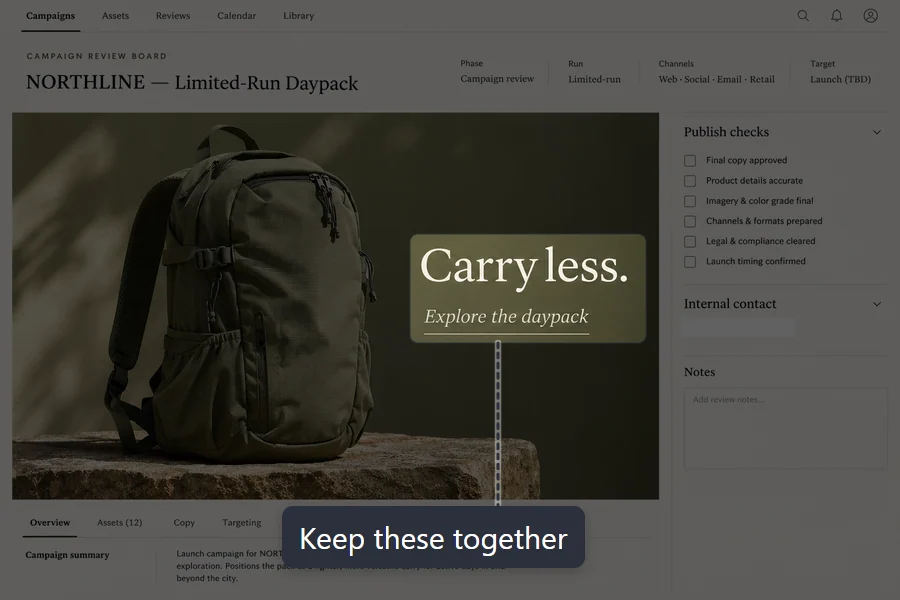
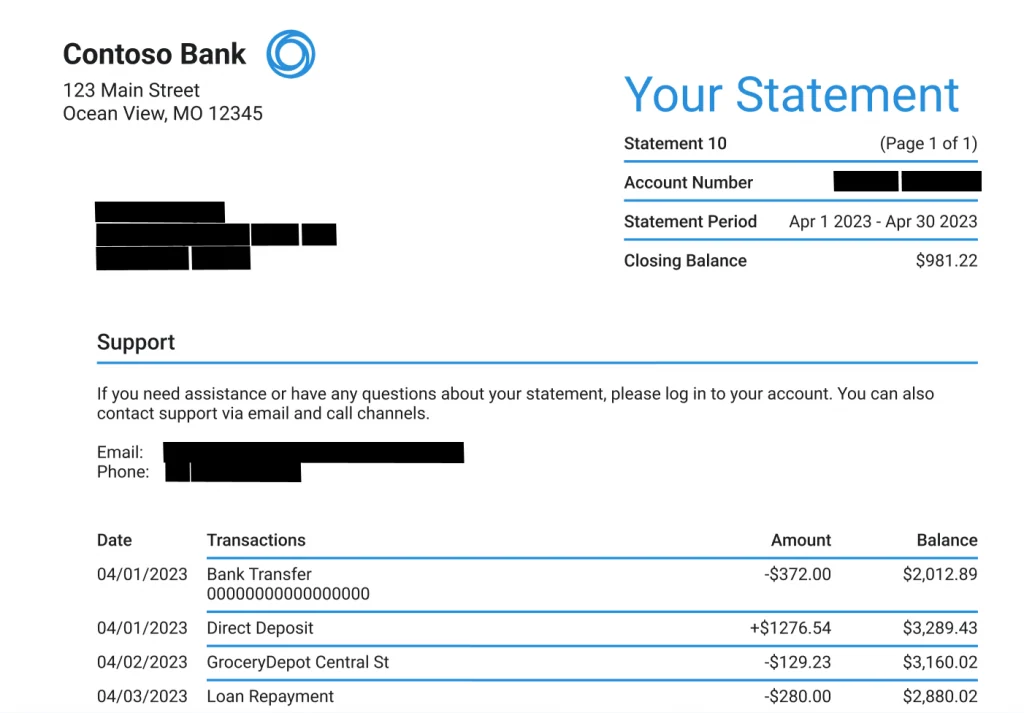
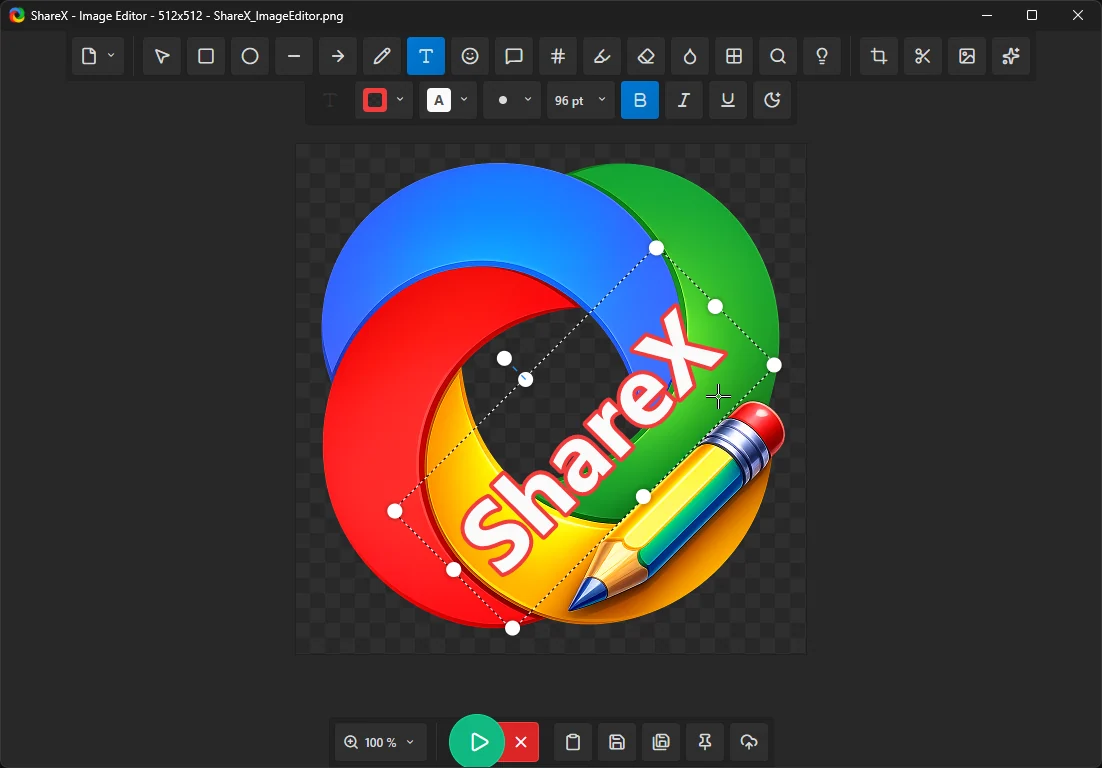
PIJO lets you cover any selected area with solid fill or pixelation. Snipping Tool includes Quick redact for supported text types, and ShareX documents editing tools such as blur and pixelate. Compare manual coverage and detection as two different jobs.
Workflow differences
| Tool | Workflow | What to check |
|---|---|---|
| PIJO | Draw a region and apply solid fill or pixelation. | Inspect the saved PNG and repeat for other fields or duplicate text. |
| Snipping Tool | Text actions can quick-redact detected email addresses or phone numbers. | Inspect any names, tokens and IDs separately. |
| ShareX | Apply image-editor obfuscation tools to a region. | Choose coverage based on the detail and review the exported output. |
More interface examples
What to try with your own screenshot
Use a made-up example with an email, an internal ID and a name appearing in two places. Compare the work involved in removing all three. For a sensitive value, a solid opaque cover makes it easier to verify what remains in the exported image.
We make PIJO. The cover is an illustration. The comparison screenshots show PIJO and examples from the named vendors. The workflows use product documentation and the demos shown here.