
All features

Capture what you need

Pixel loupe and crosshair guides

Place both corners on the exact pixel instead of trimming the screenshot afterwards.

The result
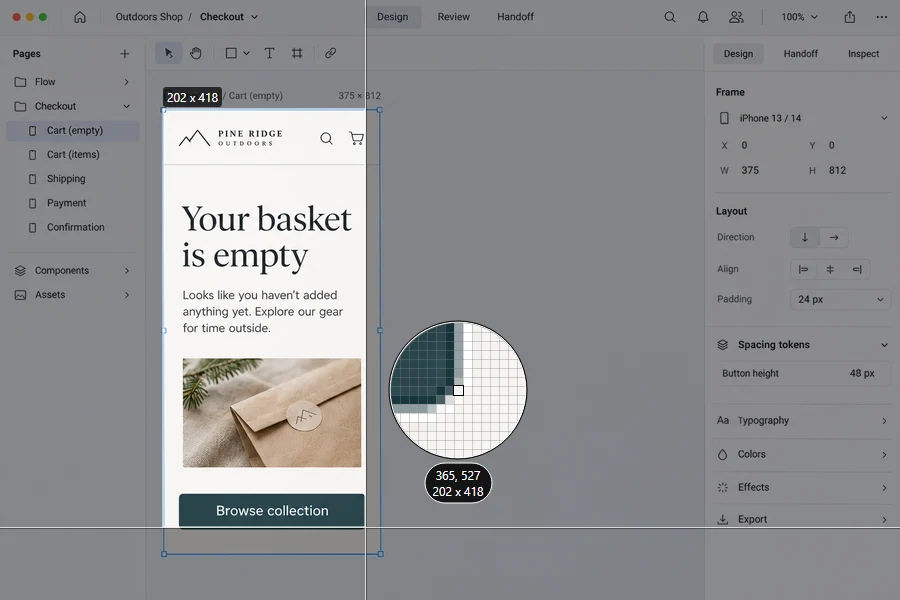
PIJO region selection with a pixel magnifier over the corner of a button
The loupe enlarges the pixels under the pointer; crosshairs help line up the cut. View full size

How to use it

  1. Open region capture with Ctrl + Shift + 1.
  2. Press M or use the magnifier button to show the loupe.
  3. Line up the first corner, then drag to the second. Read the dimensions beside the selection before releasing.

Options

Loupe
Shows a 15-pixel neighbourhood, a grid and the exact pixel under the pointer.
Default visibility
Settings > Region selection lets you enable the magnifier for future captures. M toggles it for the current capture.
Crosshairs
Always visible in region mode. Light and dark hairlines stay readable over different backgrounds.

Good to know

The loupe is available before the first click, so you can place the starting corner precisely too.