 PIJO
Dragging screenshots into other apps: PIJO, Screenpresso and CleanShot X
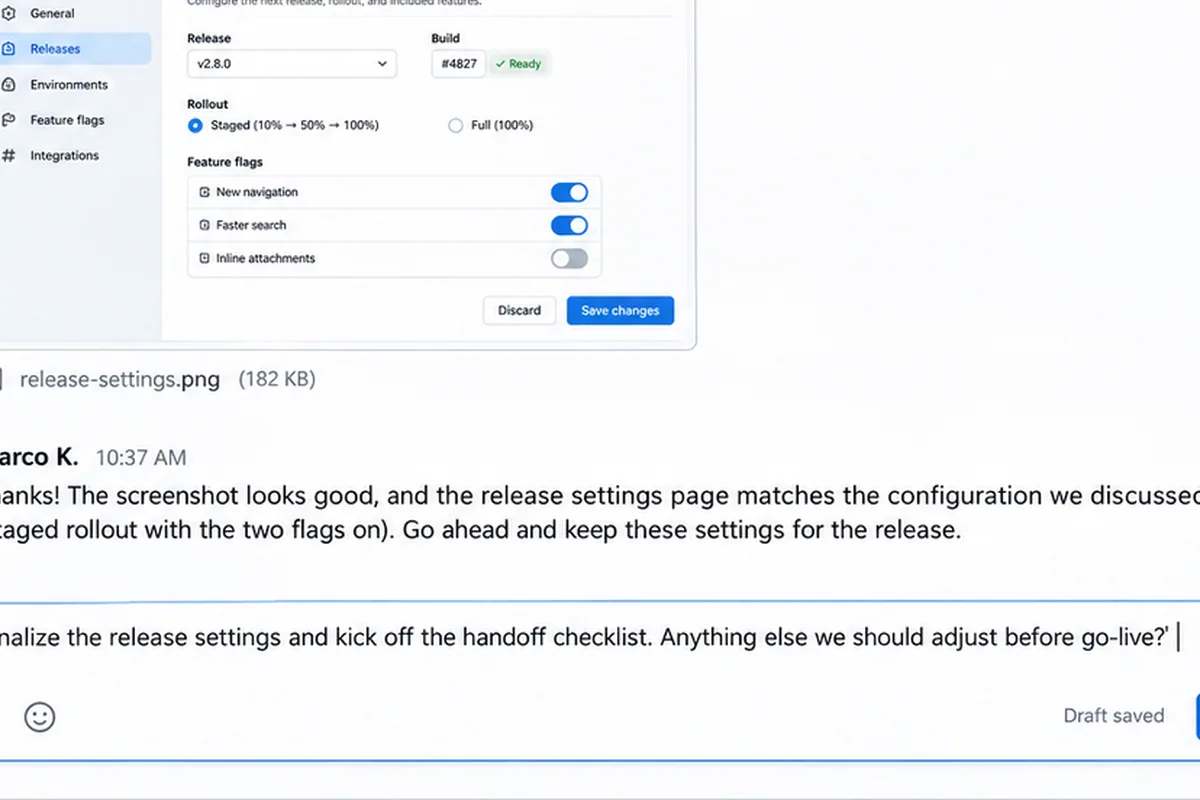
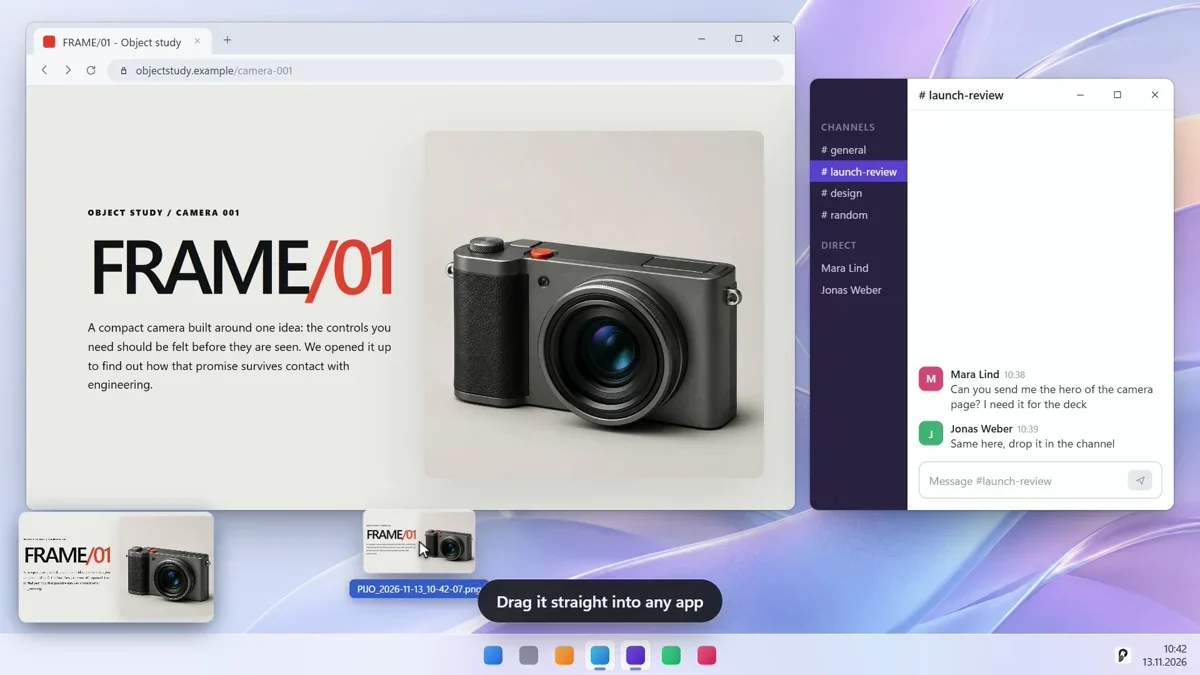
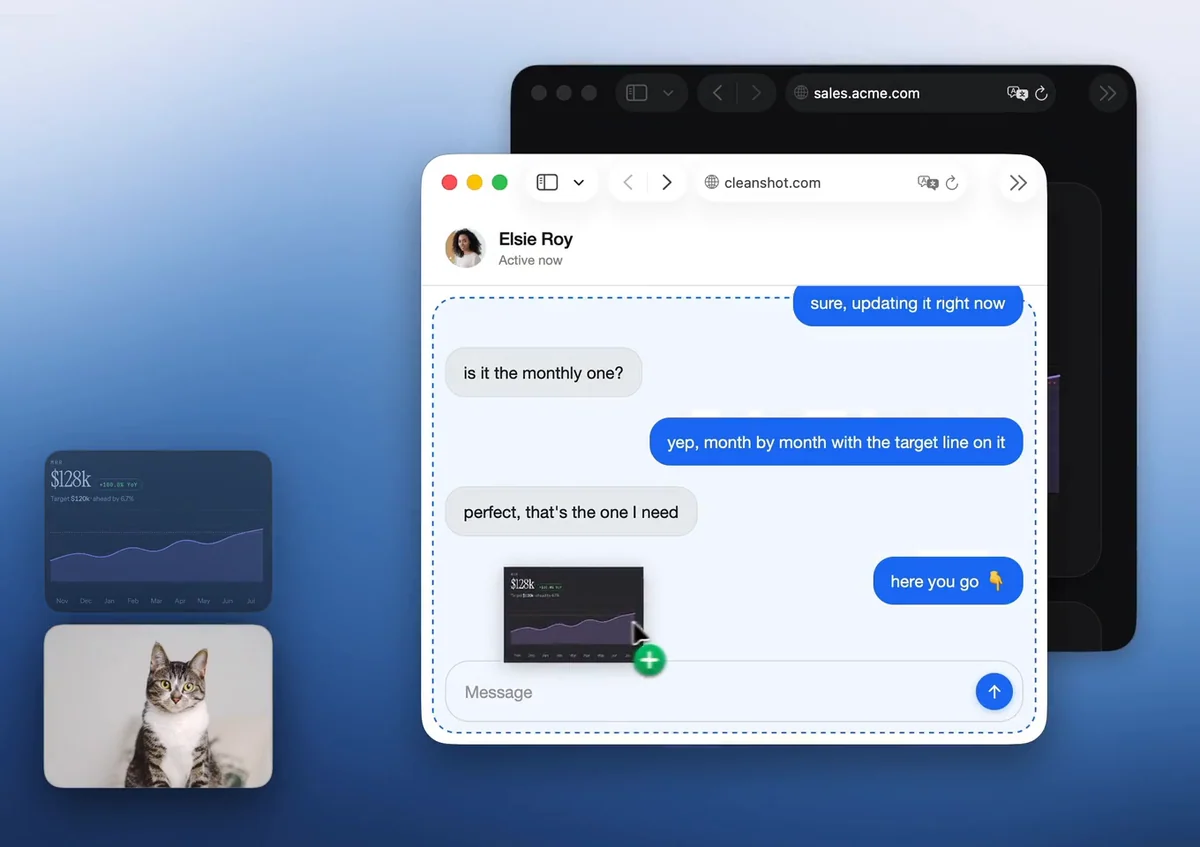
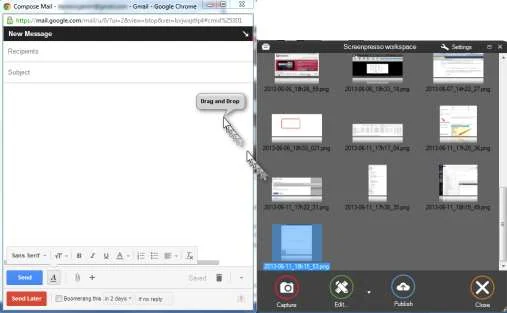
PIJO, Screenpresso and CleanShot X all offer file drag-out. They put the source in different places: a temporary desktop card in PIJO, a Windows workspace in Screenpresso, and Quick Access Overlay or Annotate on macOS in CleanShot X.
Workflow differences
| Tool | Workflow | What to check |
|---|---|---|
| PIJO | Use the file button on a floating card, or drag out from the editor. | Windows. The card itself can also move, independently of dragging out its PNG. |
| Screenpresso | Drag a selected capture from the workspace into a compatible application. | Windows. The same workspace is used to find earlier captures. |
| CleanShot X | Drag out from Quick Access Overlay or use the Annotate drag control. | macOS. Quick Access also collects recordings and screenshots. |
More interface examples
What to try with your own screenshot
Use a real destination rather than a blank text field: try an issue attachment area and a File Explorer or Finder folder. Check that the file appears in the draft, and compare how you choose an older capture.
We make PIJO. The cover is an illustration. The comparison screenshots show PIJO and examples from the named vendors. The workflows use product documentation and the demos shown here.