 PIJO
How to drag a screenshot into a chat, ticket or folder
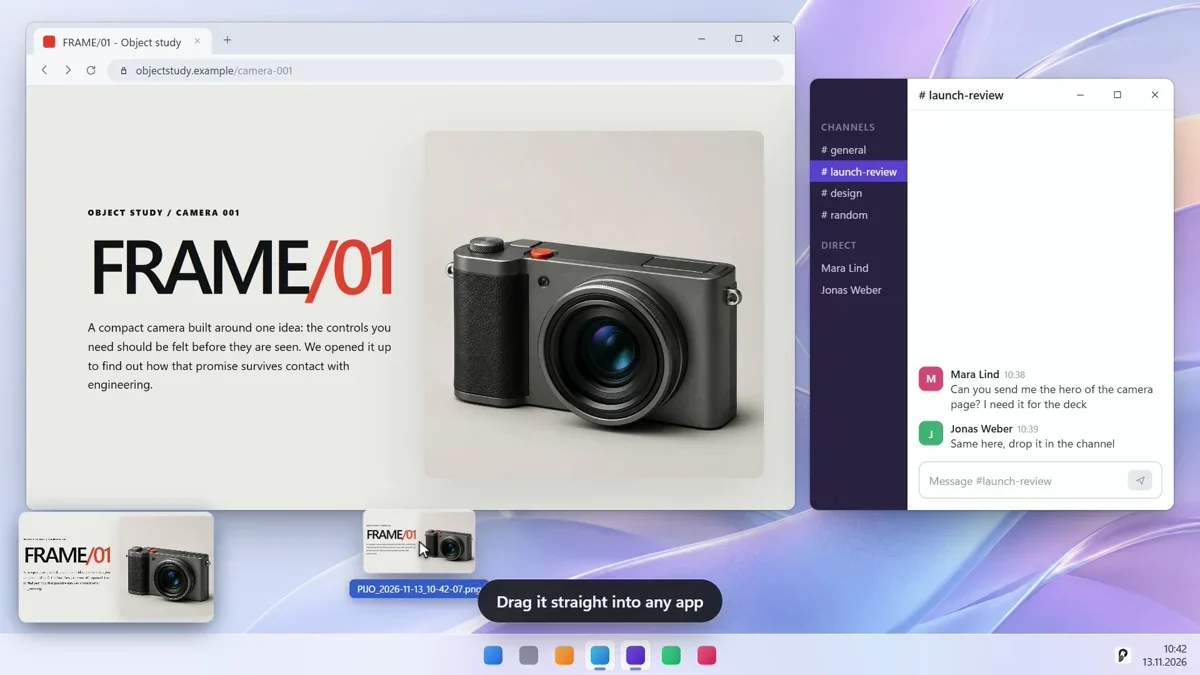
Drag the file button on a PIJO screenshot card into a destination that accepts files. For a text box that accepts image pastes, use Ctrl + V instead. PIJO puts each new capture on the clipboard as well as saving a PNG.
How to use it
- Open the destination first, such as a chat draft or issue attachment area.
- Take the capture, then hover over the card. Drag its file button into the destination and wait for the attachment to appear.
- Review the draft. If the target accepts image paste more readily than file drops, click Copy on the card and paste it.
File versus pixels
A file drop hands the destination a named PNG. An image paste gives it clipboard image data, which the destination may store or convert differently. A folder in File Explorer is a file-drop target.
Send an edited version
Open Edit, finish your annotations or use solid fill over private details, then drag or copy the edited image from the editor. Verify that the draft contains the edited version before submitting.
Pick an earlier screenshot
When you capture several regions, the clipboard only holds the latest one until you copy again. The card stack lets you drag an earlier shot directly or make it the clipboard image.