 PIJO
How floating screenshot thumbnails work in PIJO
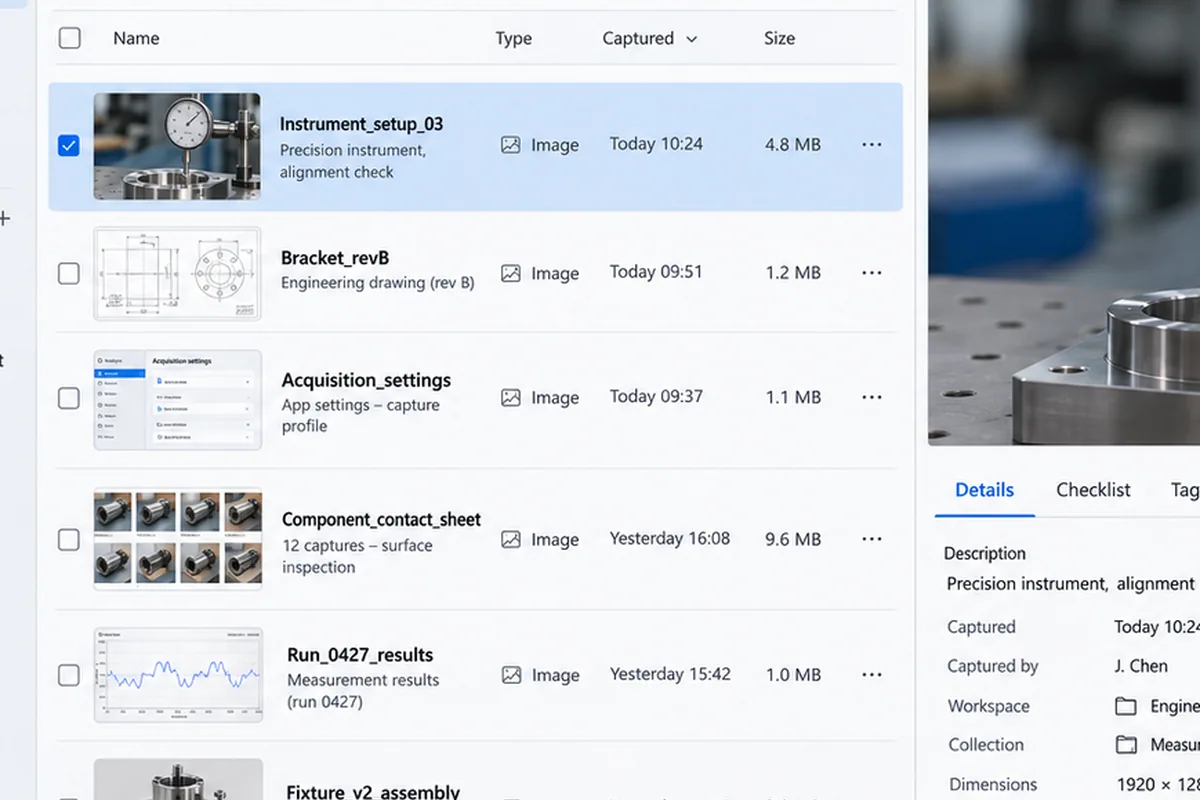
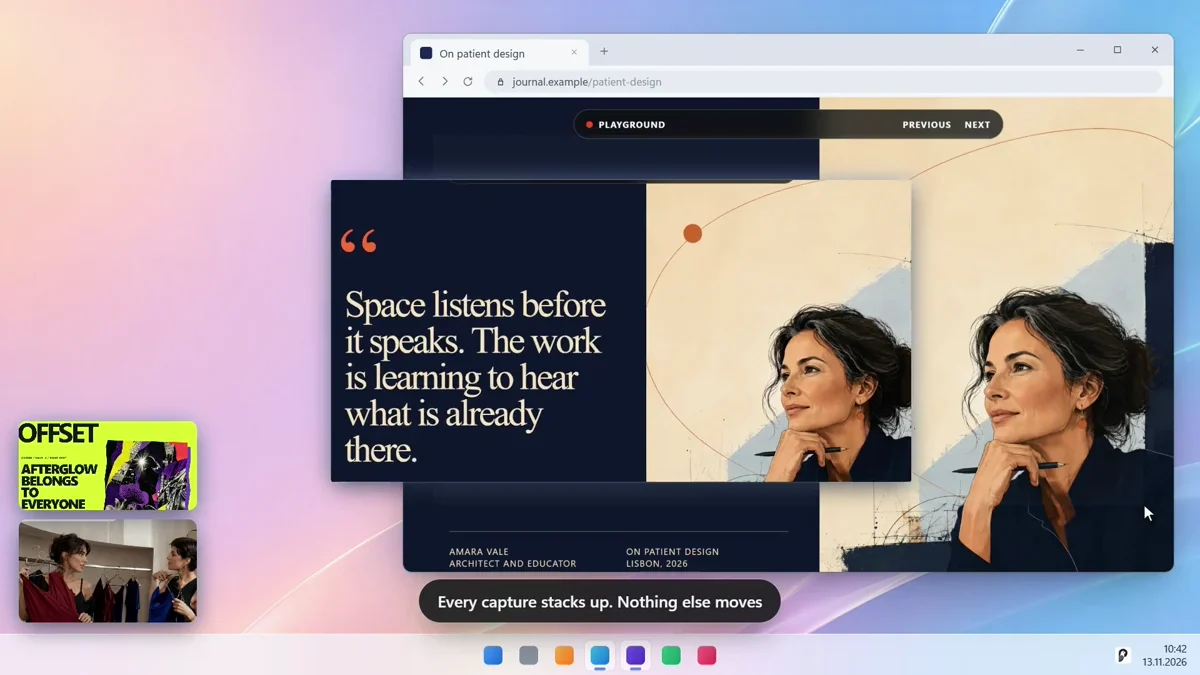
A floating thumbnail keeps a new screenshot within reach while you continue working. In PIJO, every capture creates a clipboard image, a local PNG and a card in the lower-left corner.
How to use it
- Press Ctrl + Shift + 1, select a region and release the mouse. Find the new card at the lower left.
- Take another shot. It appears above the first one, so you can still tell which image came first.
- Hover over a card to see its actions. Copy puts that specific capture back on the clipboard. Edit opens the editor. Pin keeps the card visible.
When the card stays visible
A card has its own timer. Hovering pauses it. Starting another capture holds existing cards in place and gives them time again when the new capture ends. Pin a card when you need it throughout a call or a longer task.
What happens to the file
Closing a card dismisses its on-screen preview. The capture was already saved to disk. If you saved multiple examples for a bug report, use the card to pick the right one without opening the folder.
Try it on a before-and-after report
Capture the same dialog before and after resizing it. Leave both cards visible, then attach them in order. The app excludes its own cards from subsequent captures.