 PIJO
Pinning screenshots on Windows: PIJO vs ShareX vs Snipaste
PIJO, ShareX and Snipaste can keep a screenshot above other windows. PIJO pins a card already visible after capture. ShareX and Snipaste also let you float images from sources beyond the capture you just made.

Workflow differences
| Tool | Workflow | What to check |
|---|---|---|
| PIJO | Click Pin on a newly captured card. Drag it aside to keep it in a particular place. | Snap cards to one another. Alt bypasses alignment. |
| ShareX | Pin a region, clipboard image or file, or enable pinning as an after-capture task. | Adjust scale and opacity. Move a pinned window with mouse or keyboard. |
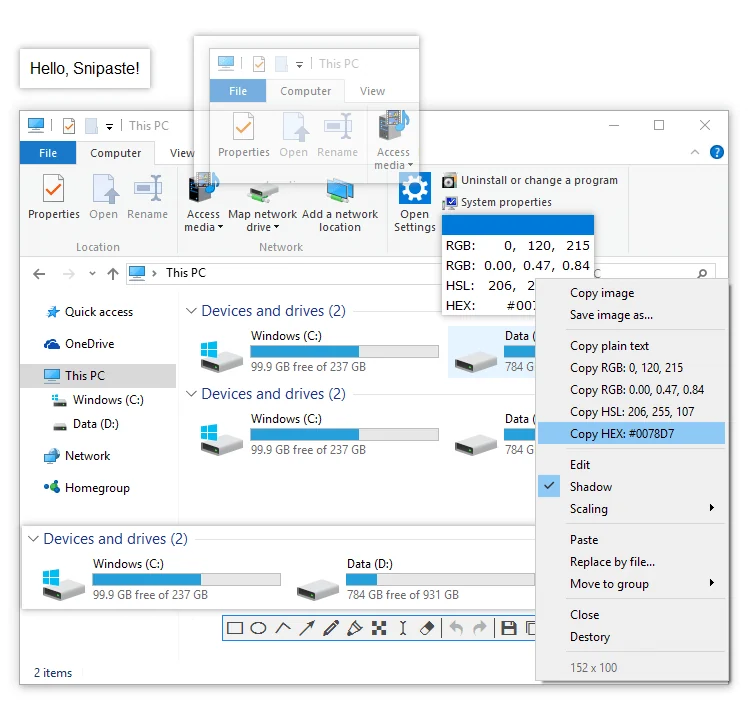
| Snipaste | Paste a captured image or content from the clipboard as a topmost floating window. | Resize it, adjust opacity or use thumbnail mode. |
What to try with your own screenshot
Keep a settings reference visible while you copy three values. If you need to compare several recent captures, try arranging more than one. If the source is an existing file, start there when evaluating ShareX and Snipaste.
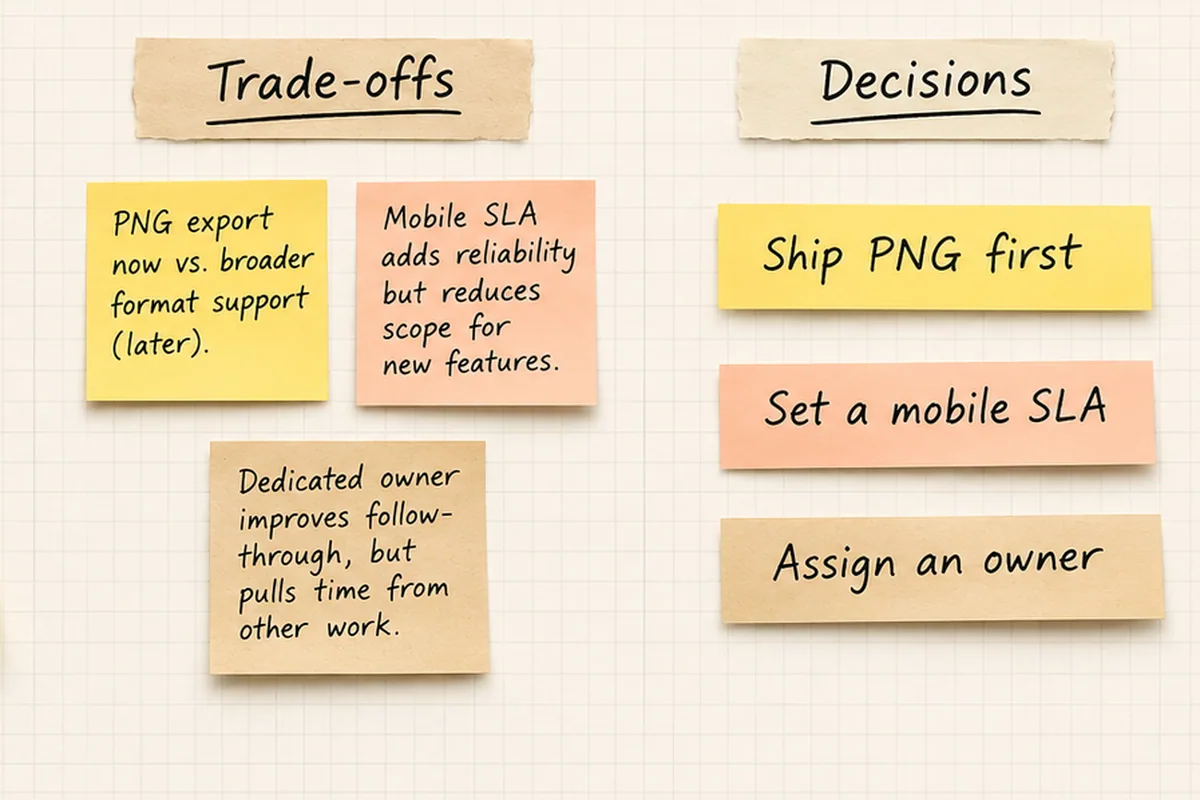
We make PIJO. The cover is an illustration. The comparison screenshots show PIJO and examples from the named vendors. The workflows use product documentation and the demos shown here.