 PIJO
How to pin a screenshot always on top in PIJO
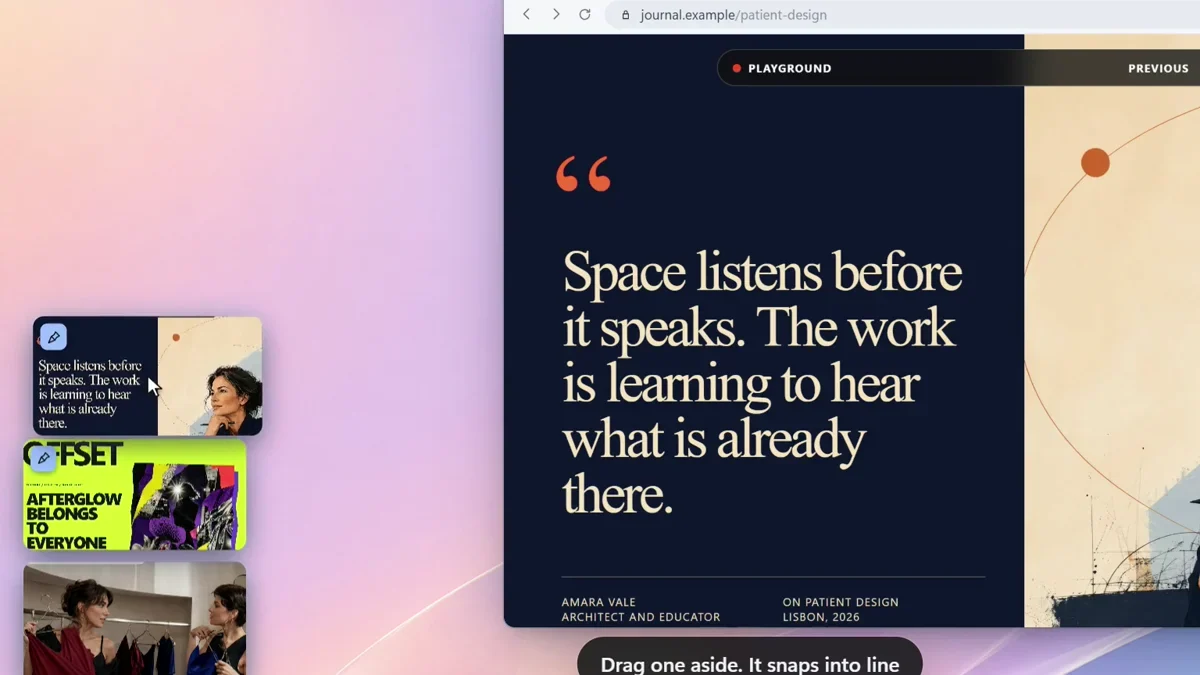
Pin a screenshot when you need a reference to stay visible while you work in another window. In PIJO, hover over the screenshot card and click Pin. Drag the card itself to reposition it.
How to use it
- Capture the reference and hover over its card.
- Click Pin. Drag the card itself beside the window where you need the reference. It can move between monitors.
- To share the file without moving the reference, use the file button. Click Pin again when you want the card to rejoin the stack.
Keep a reference in reach
A pinned card stays visible when its usual timer expires and is protected when more captures enter the stack. Pin an error dialog while you fill out its issue report, or keep a design reference beside a second application.
Line up more than one reference
Drag a card out of the column to move and pin it. Nearby cards align by edges and centres on each axis. Hold Alt while dragging when the snap point would get in your way.
Choose the right drag target
Dragging the card moves the on-screen reference. Dragging the file button attaches the PNG to an app that accepts files. The distinction matters when you want to leave the same reference open.