PIJO
How to use screenshot backdrops in PIJO
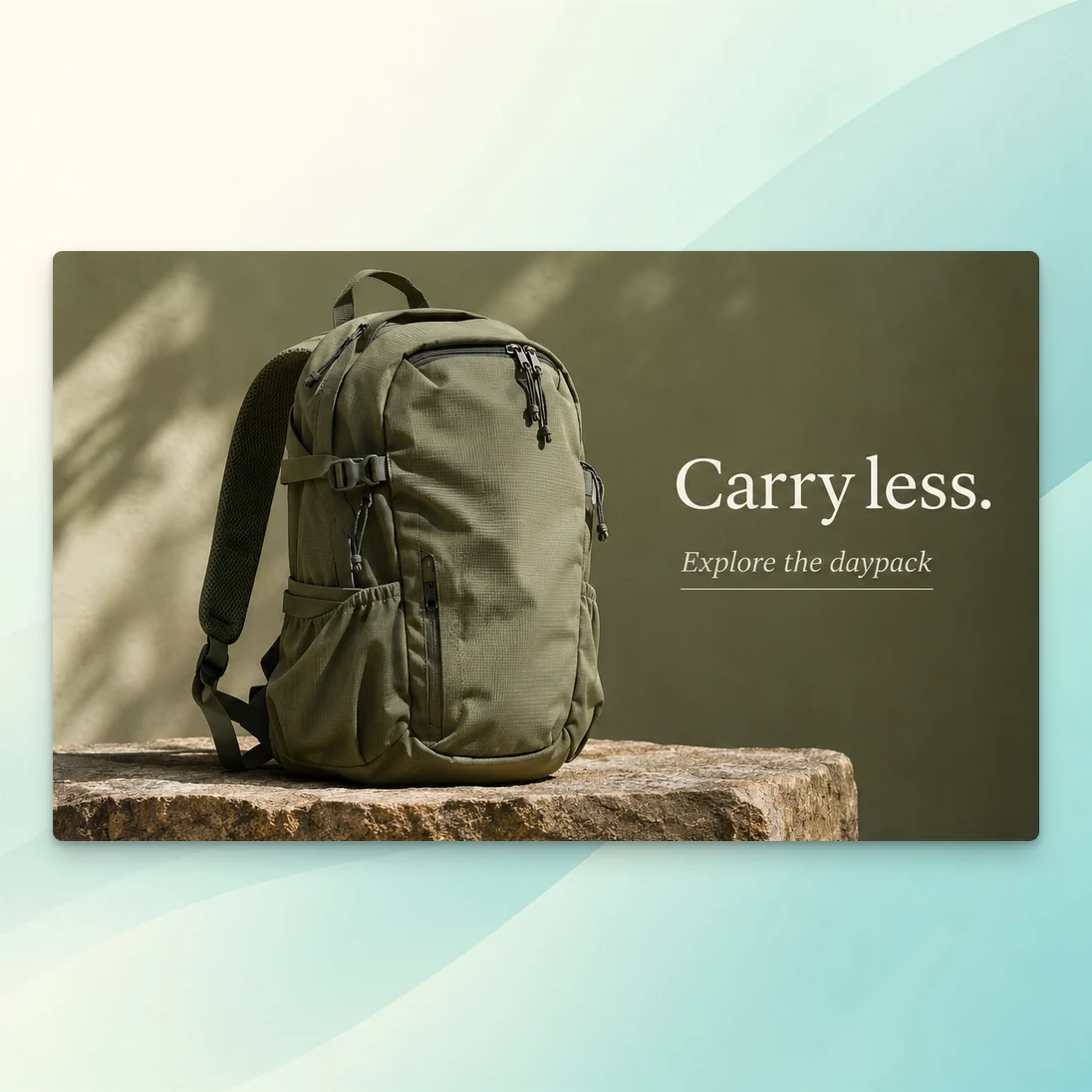
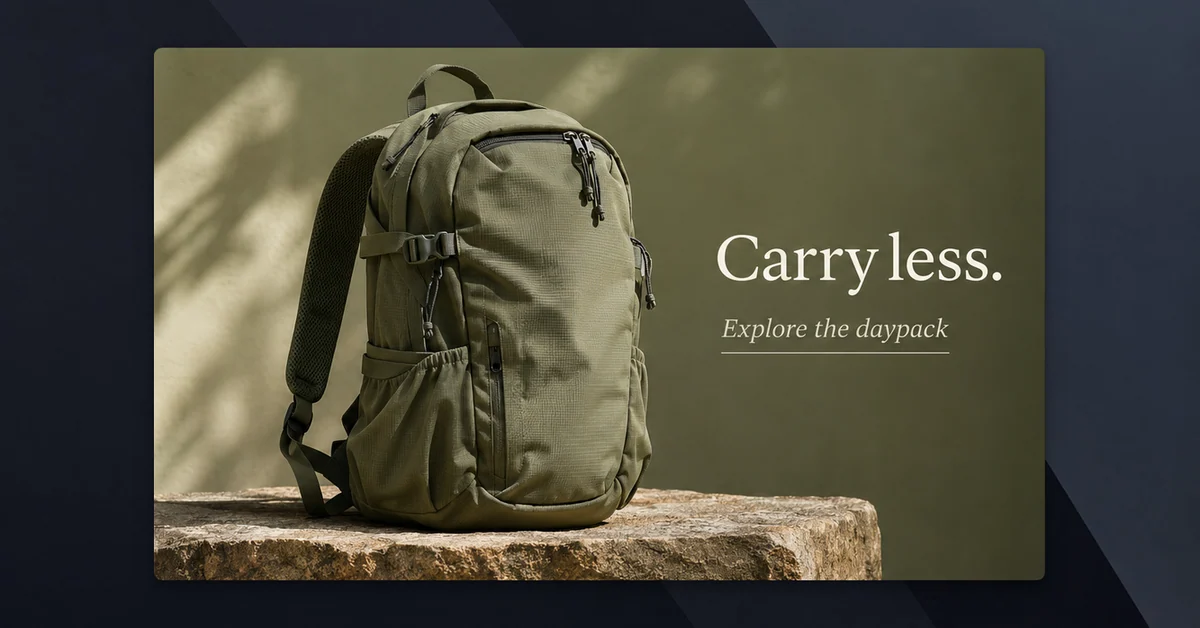
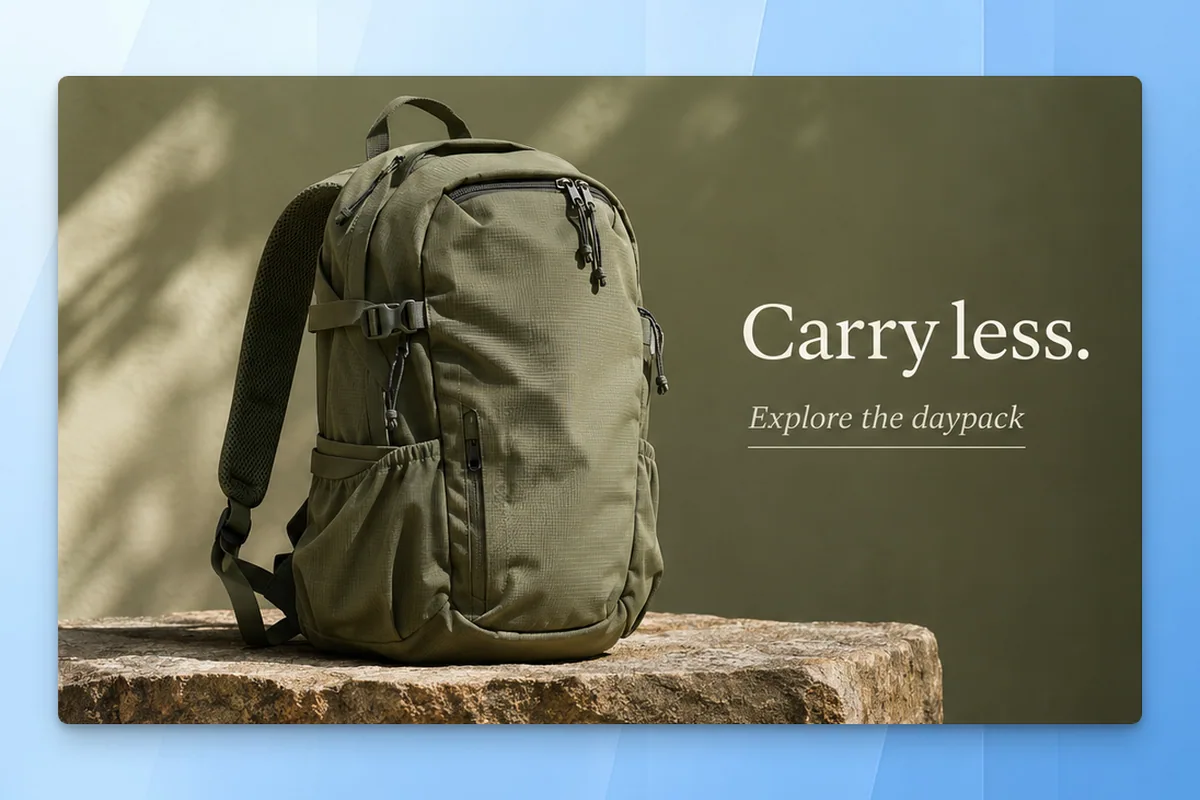
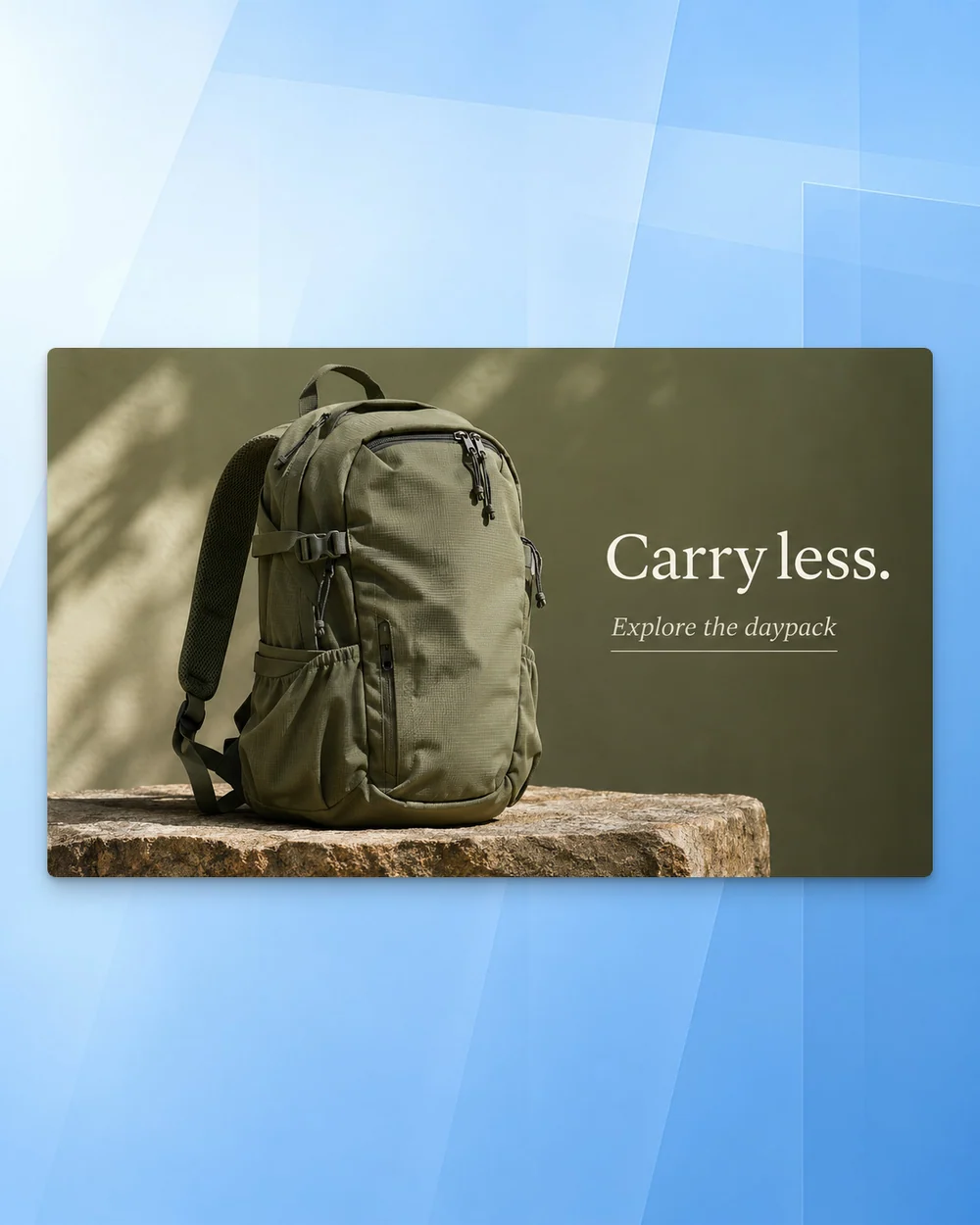
A backdrop adds a frame around a screenshot. In PIJO, press B in the editor, choose a plate, set the padding and pick the frame ratio. The screenshot stays intact within the frame.
How to use it
- Capture and crop the part that carries the story. Apply any annotation or redaction first.
- With the screenshot in PIJO’s editor, press B. Pick a named plate or Auto, which samples colours from the shot.
- Choose S, M or L padding. Use Auto for the shot’s own shape, 1:1 for a square, 4:5 for a portrait image, or 16:9 or 1.91:1 for a wide frame.
Pick a plate that helps the screenshot read
A light or dark neutral frame keeps attention on a detailed app screenshot. A more saturated plate can connect a simple image to a campaign. If Auto samples a colour that competes with your callout, try a quieter preset.
Use padding to protect legibility
Try medium padding first. If increasing it makes the screenshot text too small in the feed, crop closer to the subject or choose a frame closer to the capture’s original proportions.
Build a comparison with two captures
With a transparent canvas and backdrop enabled, each picture can keep its own rounded card treatment. Paste the second image and align the shots so the changed element sits at a comparable location.