 PIJO
How to copy text from a screenshot with PIJO OCR
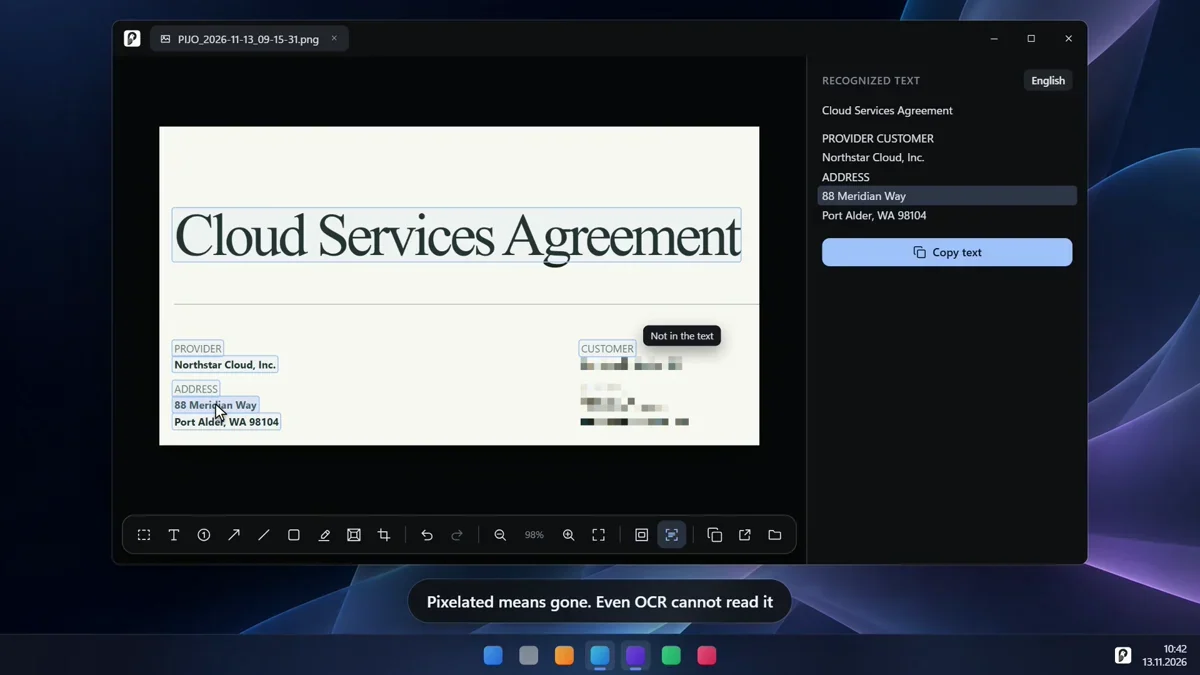
Open Recognize text from a PIJO card, or press O in the editor. OCR runs on your PC and opens an editable result beside the screenshot. You can review the text before copying it.
How to use it
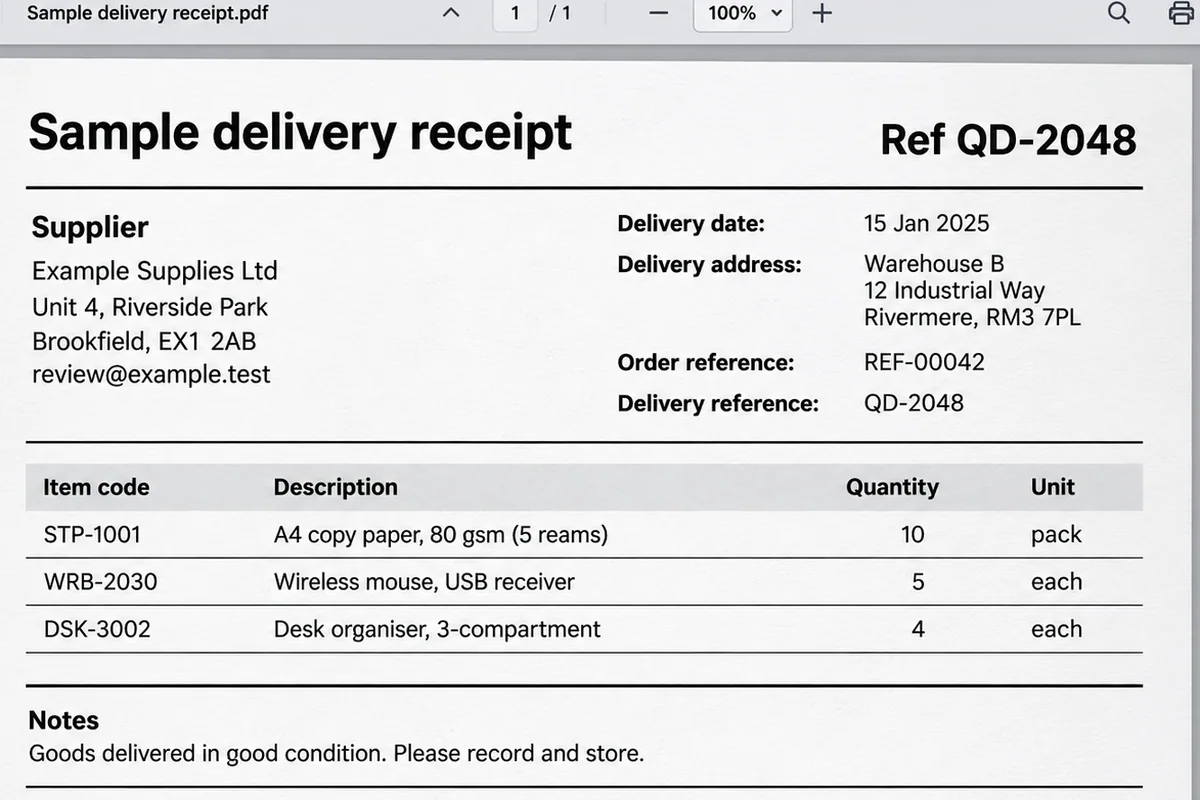
- Capture enough of the message or scanned document to keep its letters distinct.
- Click Recognize text on the floating card. To read just one region in the editor, select it first and press O.
- Click a line in the image to find its text in the panel. Correct characters or spacing as needed, then copy the relevant text.
Choose the language before retrying
PIJO uses the OCR language packs installed in Windows. Auto chooses from the results it can produce. If it mistakes letters in a screenshot that mixes scripts, try a smaller selection and choose the language of that region. Reading order can be imperfect in multi-column layouts.
Read the edited screenshot
For material you plan to share, cover sensitive details with a solid fill before recognition. PIJO reads the edited pixels. Review the recognized text as well as the exported image.
Use the original when a digit matters
An error code, command or invoice number may be off by one character even when surrounding text is accurate. Compare the copied result with the image before using it.