 PIJO
How PIJO captures scrolling windows and selected regions
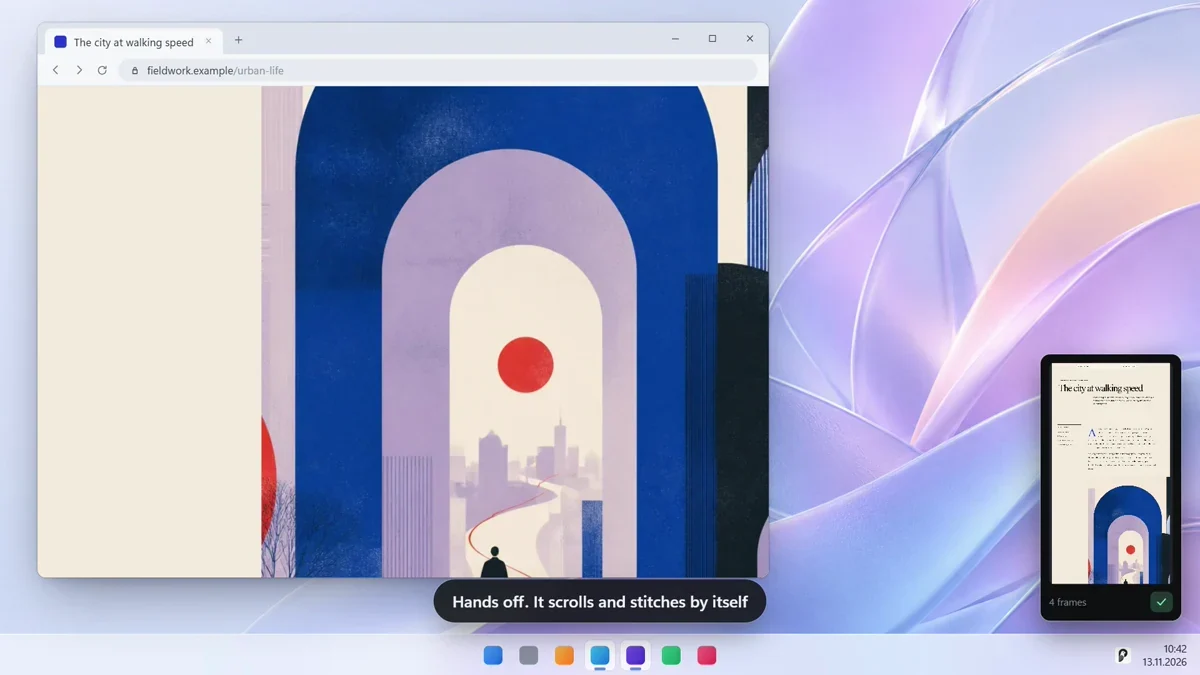
PIJO scrolls a selected window or rectangle vertically and stitches the resulting frames into one PNG. The preview grows as the capture proceeds, so you can stop when the part you need has been collected.
How to use it
- Bring the top of your target into view, then press Ctrl + Shift + 4.
- Click the window or draw a rectangle around the scrolling content. For a spreadsheet, start inside the grid to leave its ribbon outside.
- Keep the pointer still. Let the capture finish or press Esc to keep what has been captured so far. Check the result at a readable zoom.
What to leave outside the selection
Avoid including the scrollbar gutter if you want a clean edge. An animated sidebar or a constantly updating status box can change pixels between frames. Narrow the region to the content that matters.
Why fixed headers need a check
PIJO looks for static bands and attempts to include them once, while matching successive frames based on the actual scroll distance. Check the stitched result for missing lines near fixed and lazy-loading content.
Where it stops
PIJO captures vertically and limits the result to 32,000 pixels or 120 frames. A window running with higher Windows privileges may return only the initial frame. For an extremely long thread, make smaller captures.