 PIJO
The art of screenshot annotation
Good screenshot annotation tells a reader where to look or what to do next. These five examples use PIJO to mark up a game plan, a marketing draft, a design handoff, a code review and a strategy board.
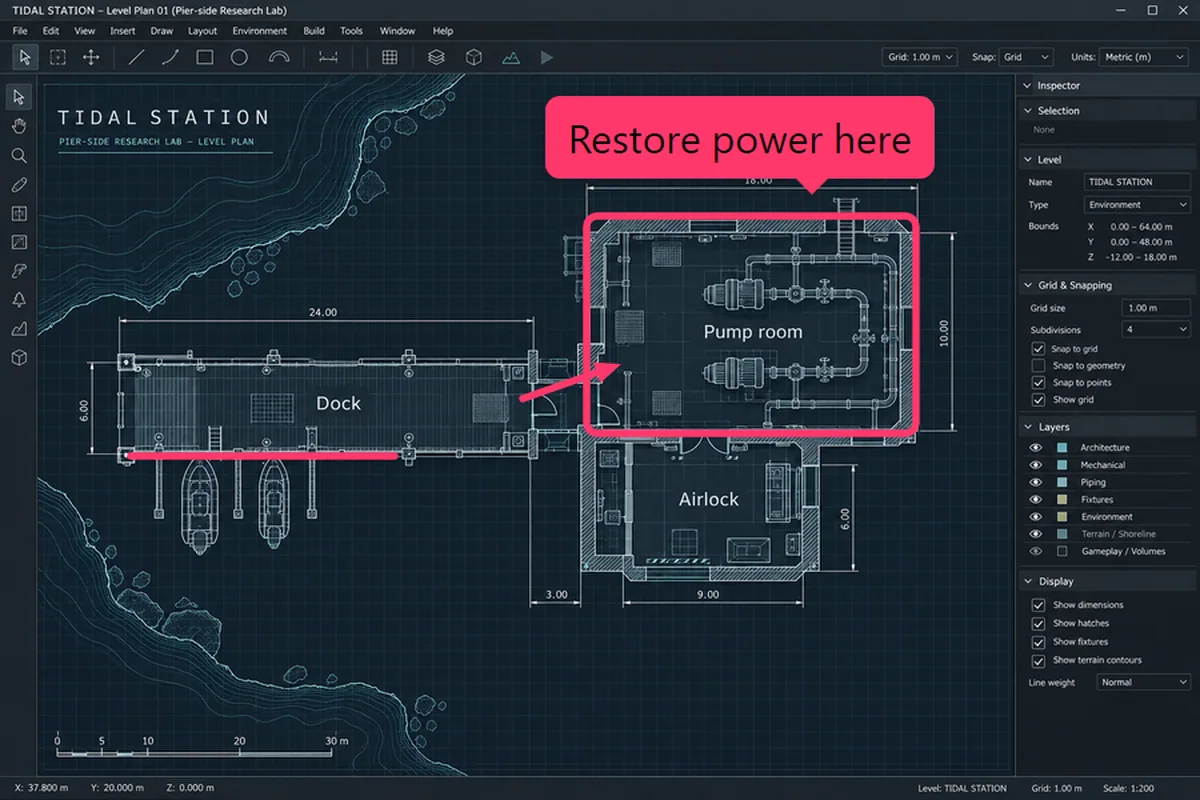
Game planning: mark a route and its objective
A level designer wants to make the route clear and identify where power is restored. Use a plain line to show an alignment, a box to identify the objective and an arrow to record the direction of travel. Add a short box caption outside the room so the original labels stay readable.
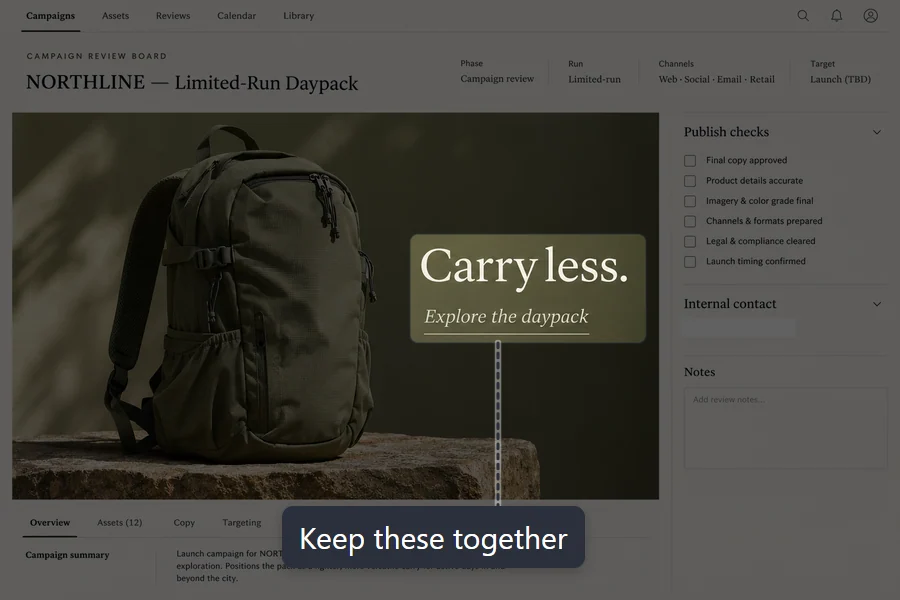
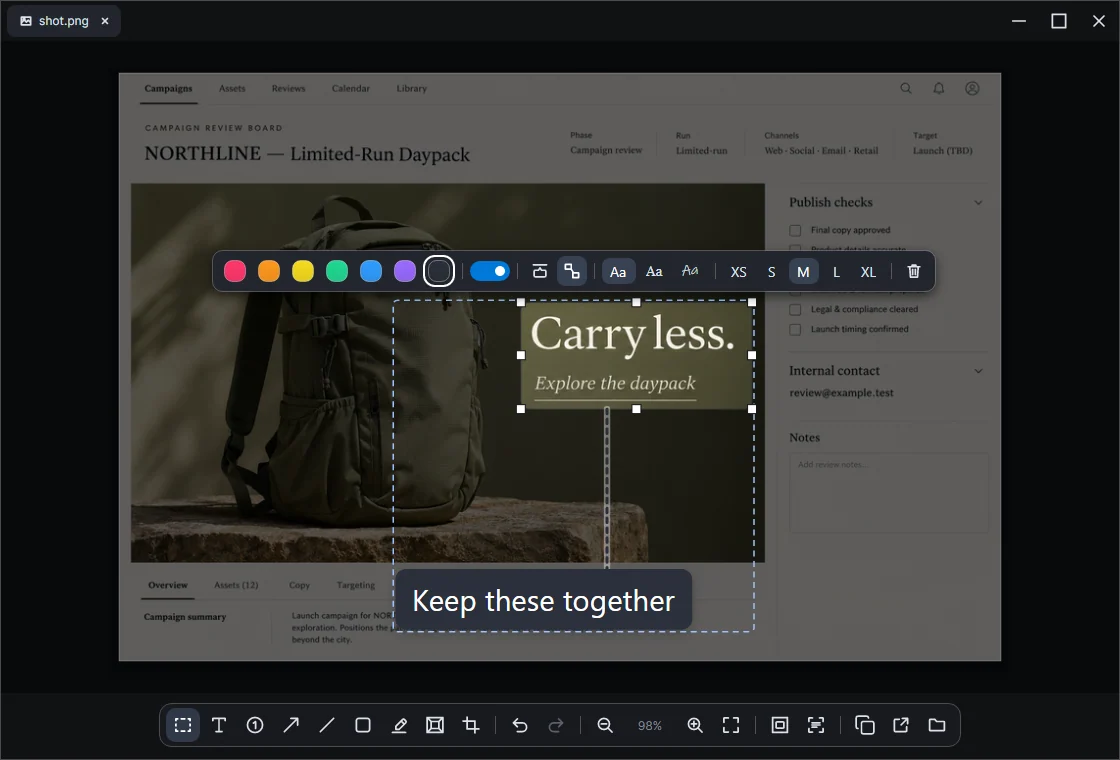
Marketing review: spotlight the headline and call to action
A reviewer wants to discuss how the promise and call to action read together. Spotlight the two items as one region. Double-click to add a caption, choose the dashed-line mode, and pull the card into open space. Use solid fill over the internal contact field before posting the review image.
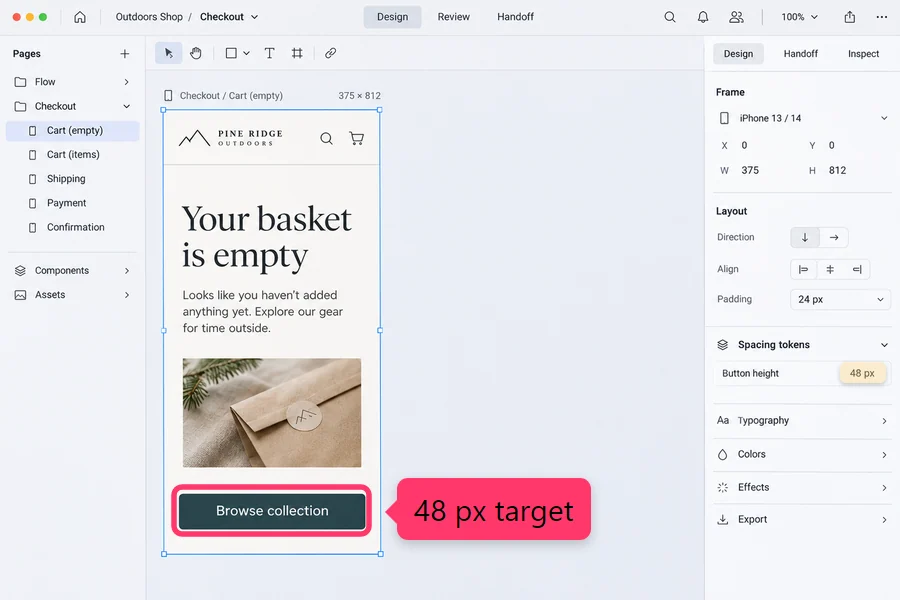
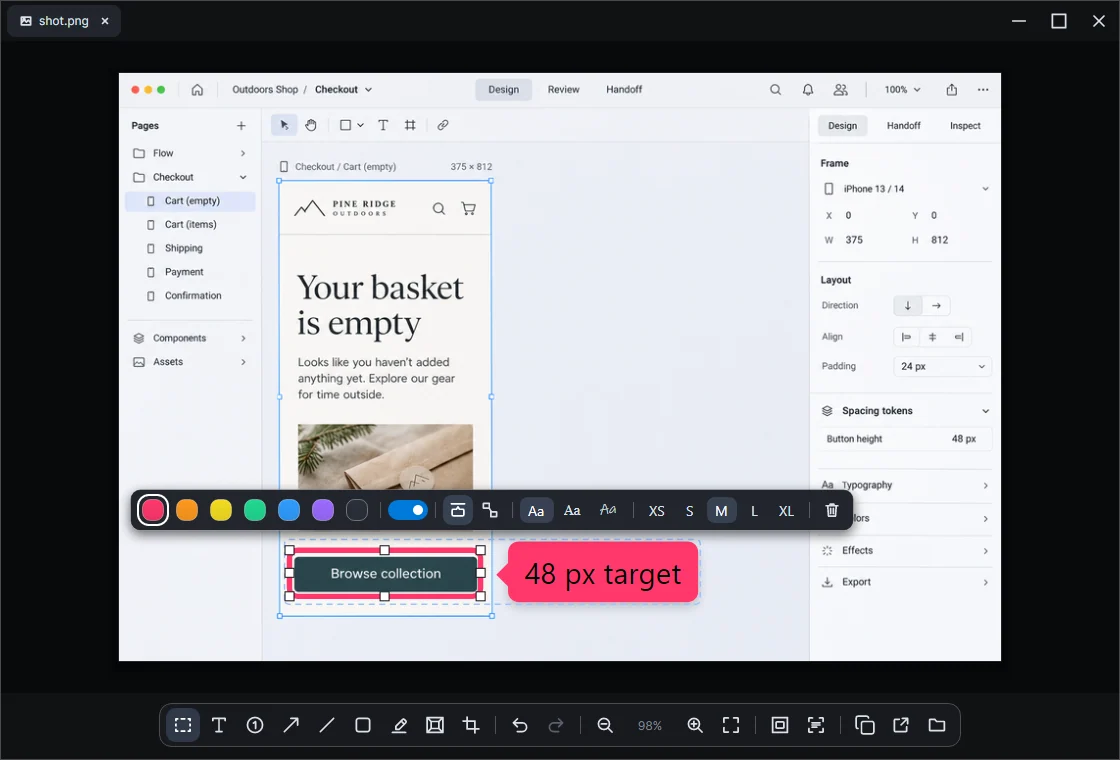
Design handoff: pin a note to a component edge
A designer sees a checkout button that should follow a 48 px token. Frame the button with a rectangle, add a caption, then drag the tooltip around the rectangle edge to keep it away from the label. Highlight the token value on the same capture.
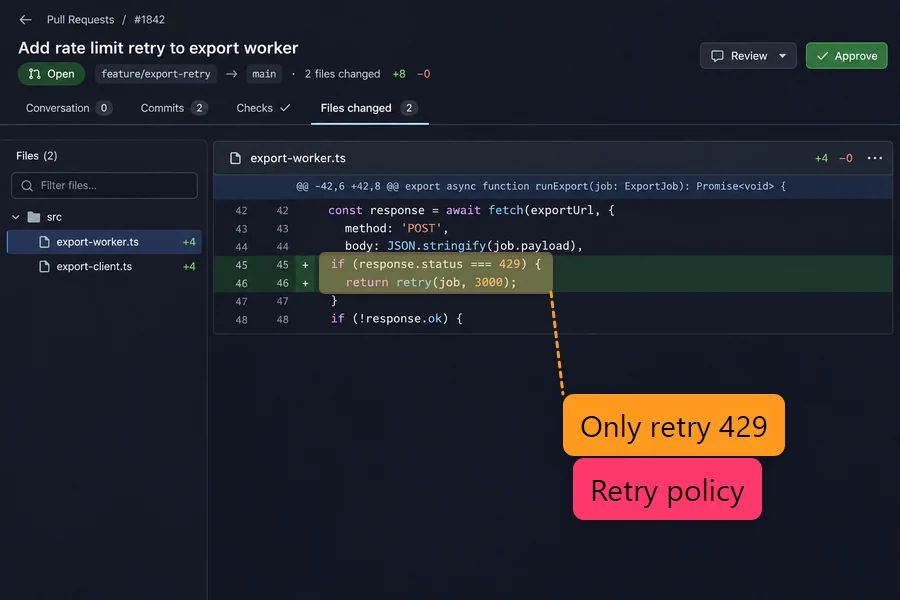
Code review: make a two-line change easy to find
A reviewer needs to explain why the job retries a rate-limited request. Highlight the changed lines, put the text in a short detached note and add a standalone label for context. Keep the code itself selectable in the original review and use the annotated screenshot as a reference.
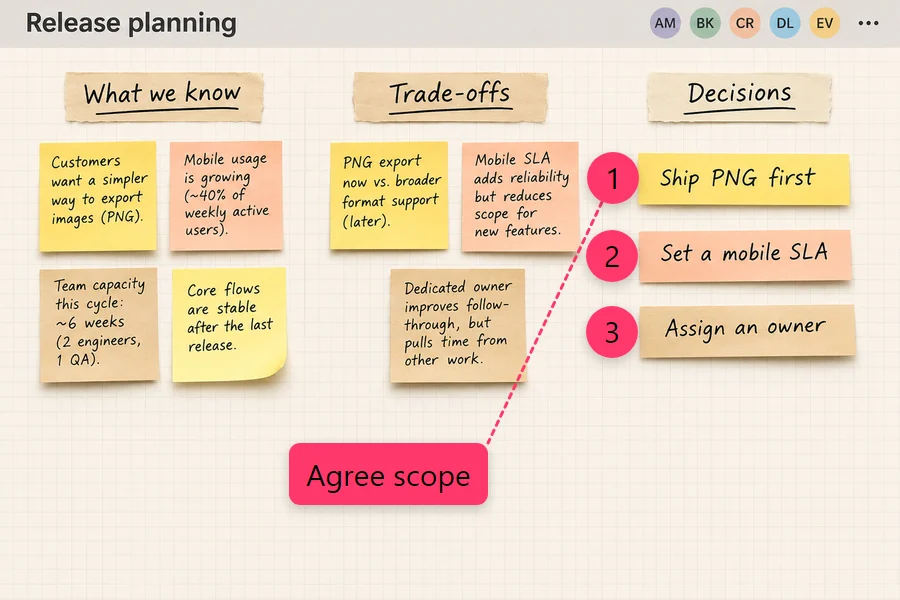
Strategy session: turn decisions into a sequence
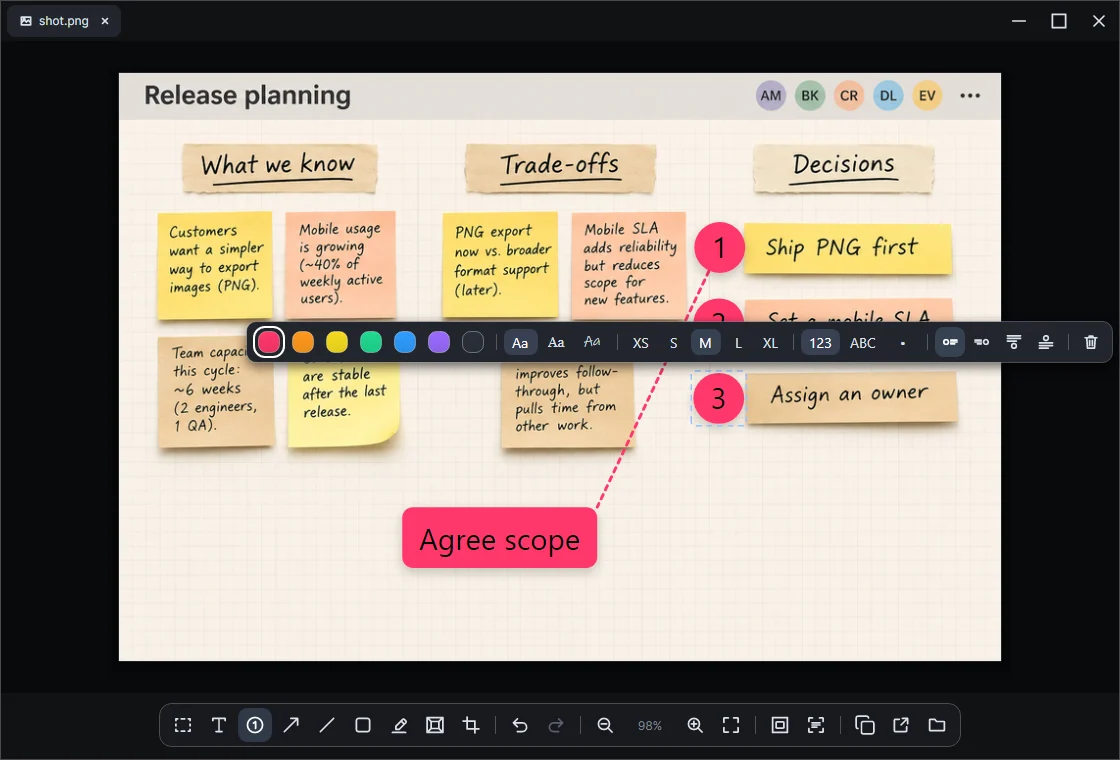
After a release-planning workshop, mark the three agreed actions in order. Use numbered markers for the sequence and move a caption to spare space so it does not cover another decision. The first marker remains in place while its caption moves.
Choose the annotation that matches the job
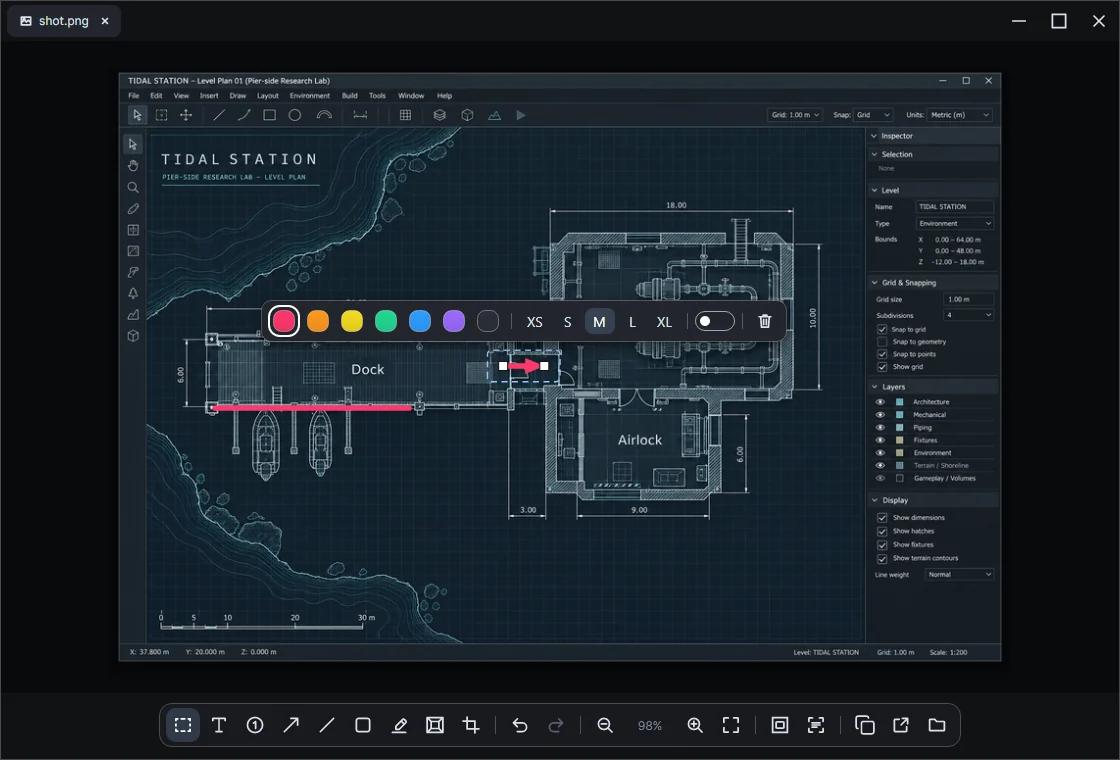
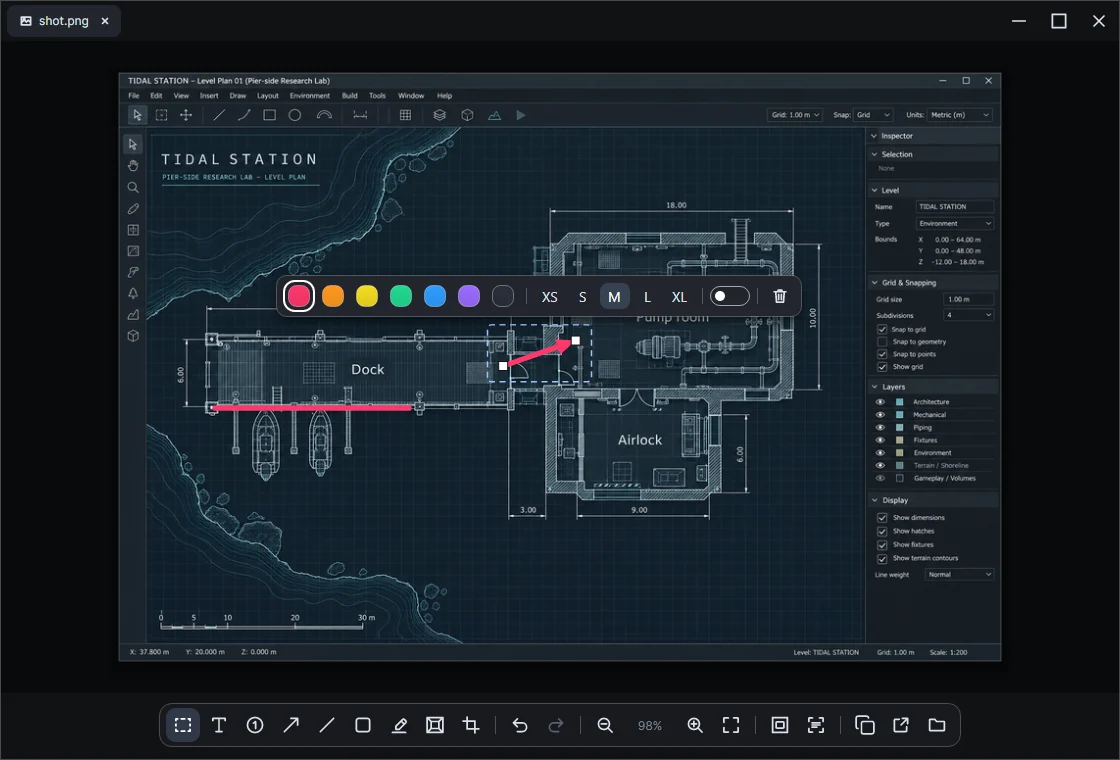
- Arrow or line. Point to a control, or mark alignment with a plain line. The two endpoints can be adjusted independently.
- Text. Drop a standalone label. Use a text plate when the background makes letters difficult to read.
- Step marker. Use numbers, letters or dots. Add an optional caption and move it independently when space is tight.
- Rectangle, highlight or spotlight. Frame a region, tint its contents or dim the surrounding screenshot. Each can take an edge caption or a detached card.
- Redaction and image layout. Use a solid fill for sensitive details. Paste a second image and align it beside the first for a comparison.
The fictional engineering plan, campaign, interface, code review and workshop board were generated with ImageGen. Their markup and editor frames were rendered in PIJO.