 PIJO
Make the point
A screenshot that explains itself
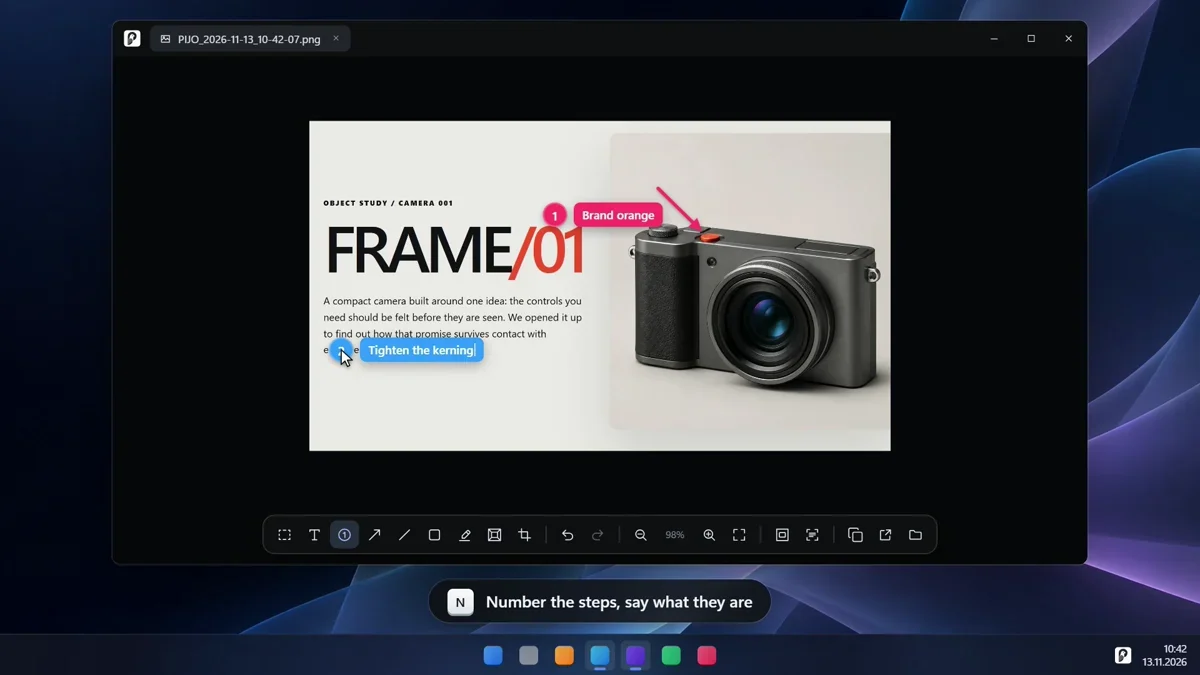
Add arrows, steps, text and callouts, then share the finished image.
The result
Watch it in action
How to use it
- Click Edit on the floating screenshot card.
- Choose a tool: A for Arrow, L for Line, R for Rectangle, T for Text, N for Steps, H for Highlight or S for Spotlight.
- Select an annotation to move it or change its style. Press Ctrl + C to copy the result.
Options
Good to know
The guides below describe each tool’s own settings. A highlight has different controls from an arrow or a text label.