
All features

Give it a finish

Crop, extend and colour the canvas

Trim the image or add space around it, with a colour, transparency and a soft picture shadow.

The result
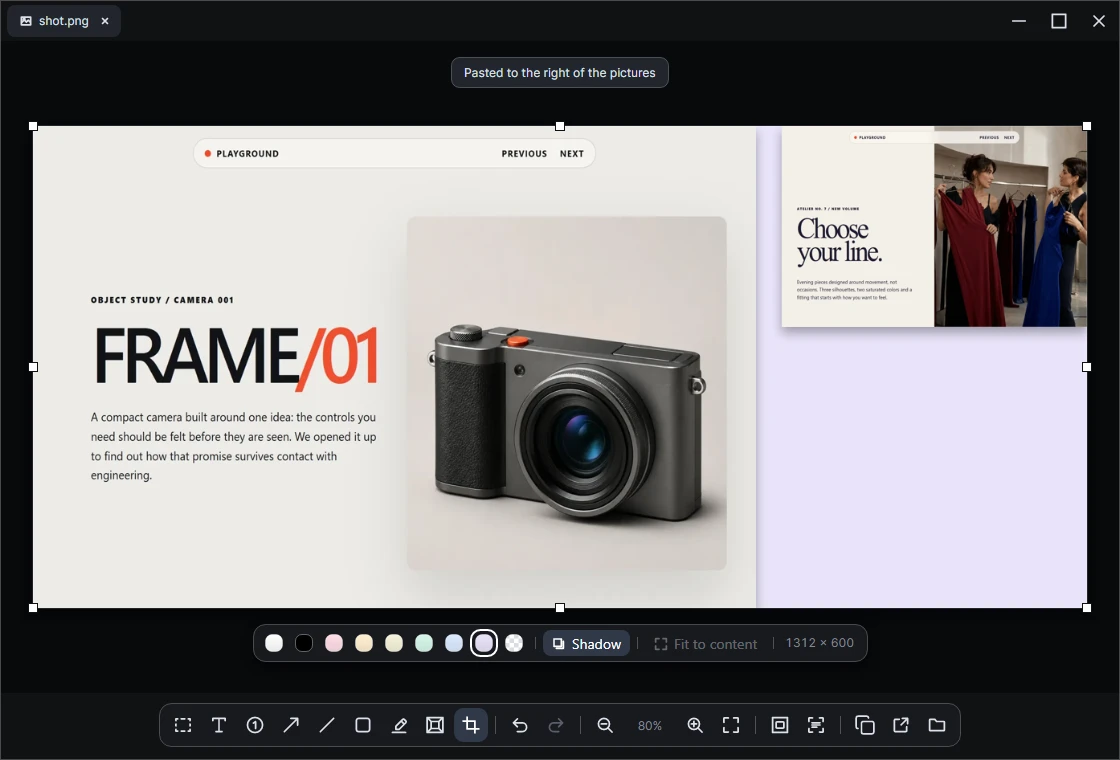
PIJO crop tool with a larger lilac canvas around two pictures and its canvas options bar
Pull the canvas grips outwards to add room. The bar below the page controls fill and shadow. View full size

How to use it

  1. Press C in the editor.
  2. Pull an edge or corner inwards to crop, or outwards to extend the canvas.
  3. Choose a fill and shadow in the bar under the page. Use Fit to content to trim to the pictures.

Options

Fill
White, black, six pastel tints or transparent. Transparent areas show a checkerboard in the editor.
Picture shadow
A soft shadow under each picture, on by default.
Size
The bar shows the live canvas dimensions as you resize.
Transparent export
The PNG keeps alpha. Clipboard PNG keeps it too; some apps use a white-backed clipboard format instead.

Good to know

On a backdrop with a transparent canvas, each picture becomes its own card. Its backdrop shadow replaces the separate picture shadow.