 PIJO
Give it a finish
Tabs, zoom and undo
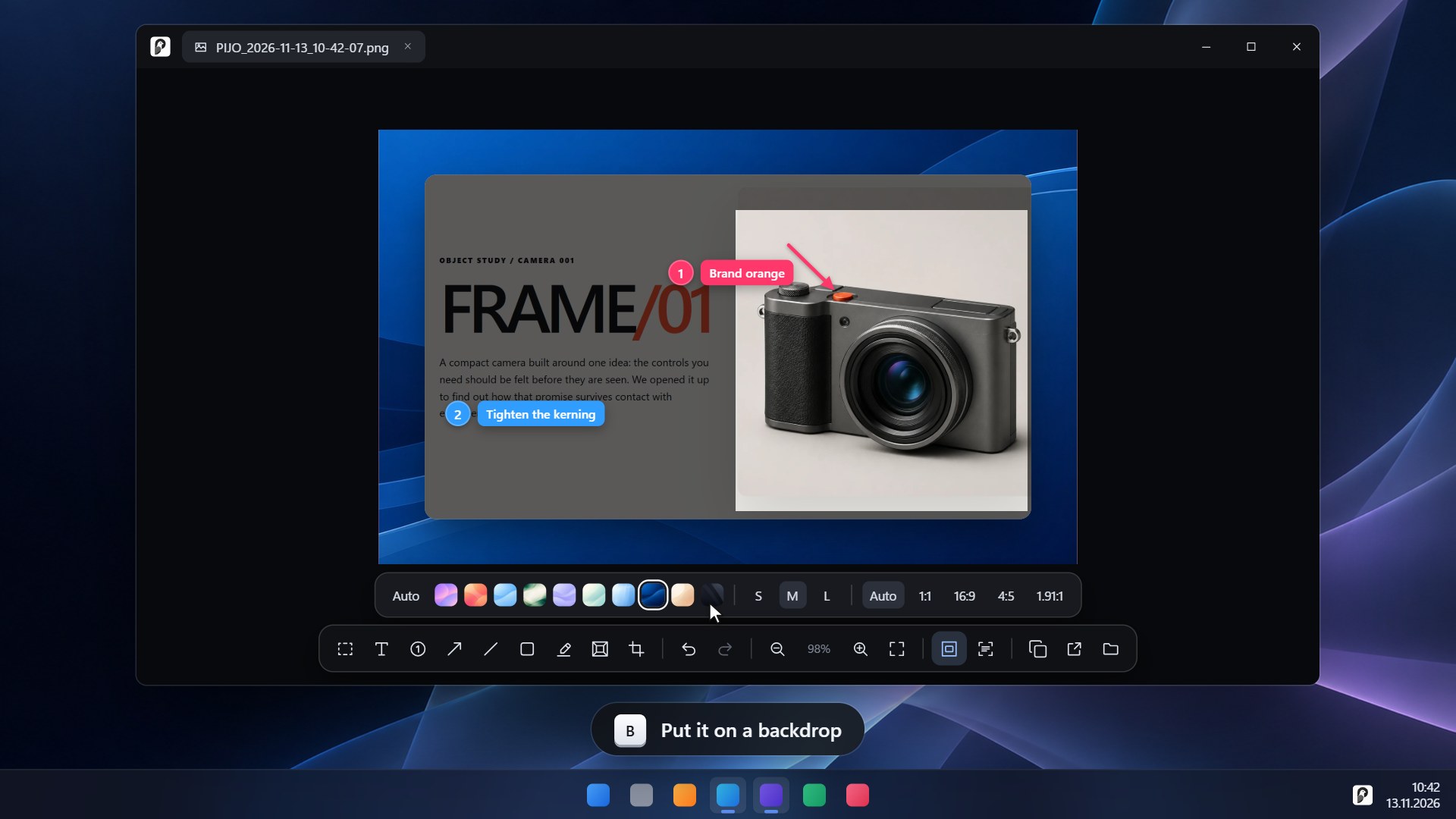
Work through several captures in one editor and keep room to try a different approach.
The result
How to use it
- Choose Edit on another screenshot card to add it as a tab in the editor.
- Use Ctrl + Tab to move to the next tab or Ctrl + Shift + Tab to go back.
- Undo with Ctrl + Z. Redo with Ctrl + Y or Ctrl + Shift + Z.
Options
Good to know
Closing the tab ends its editable history. Reopening the PNG loads the finished pixels.