 PIJO
Give it a finish
A second picture on the canvas
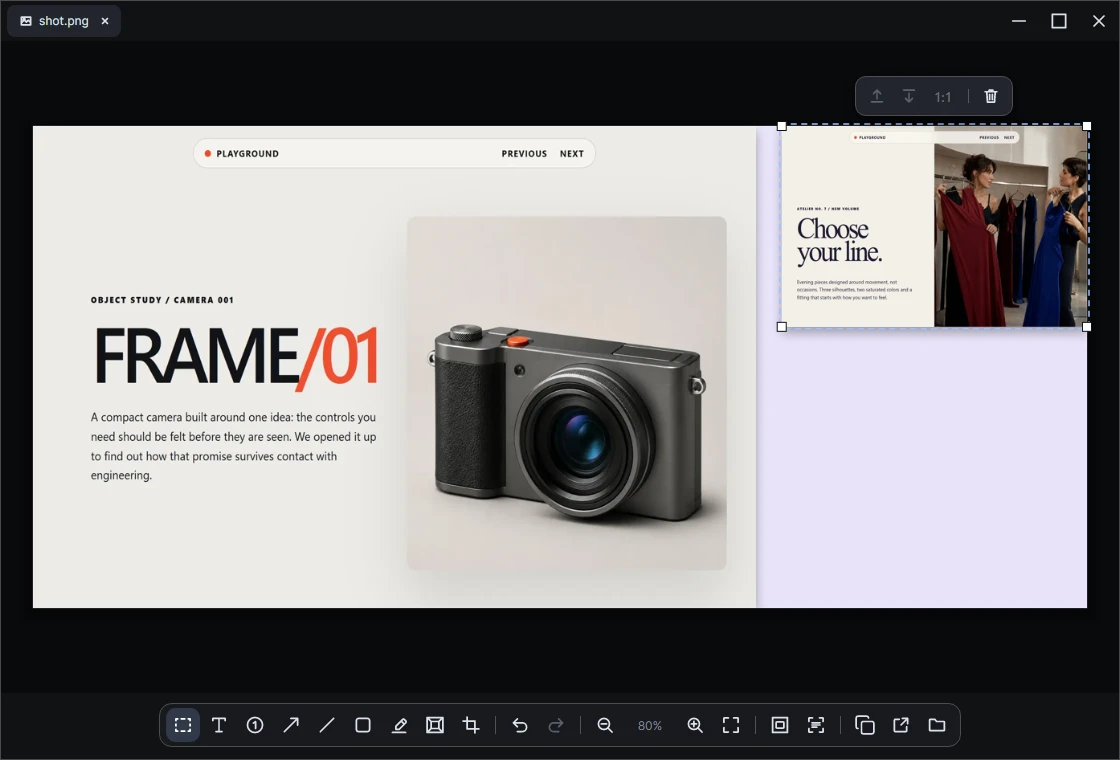
Put screenshots side by side, resize them and arrange a comparison in one image.
The result
How to use it
- Copy an image, then press Ctrl + V in the editor. Dropping an image file into the editor works too.
- Press V and drag the picture into position. Pull a corner grip to resize it with its proportions kept.
- Use the picture’s 1:1 button to restore its original size, or change its stack order in the floating bar.
Options
Good to know
Annotations do not move with a picture. The canvas grows automatically but only shrinks when you crop it or choose Fit to content.