 PIJO
Keep it close. Send it on.
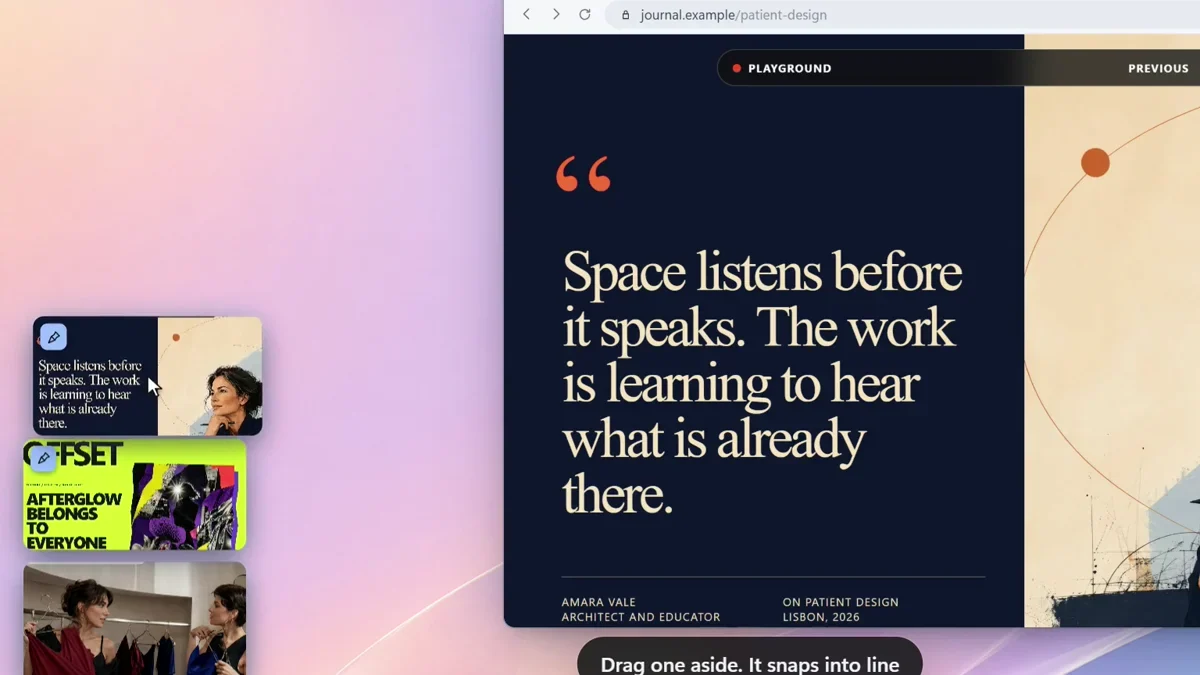
Pin and snap cards
Keep a reference on screen and line it up beside the window you are working in.
The result
How to use it
- Hover over a card and click its pin to keep it in the stack.
- Drag the card itself to park it elsewhere. Moving a card pins it automatically.
- Click the pin again to return it to the stack and restart its timer.
Options
Good to know
Use the separate Drag out button when you want to send the file to another app. Dragging the card itself moves the reference.