
All features

Keep it close. Send it on.

Automatically copied and saved

Finish the capture and your PNG is already on disk and on the clipboard.

The result
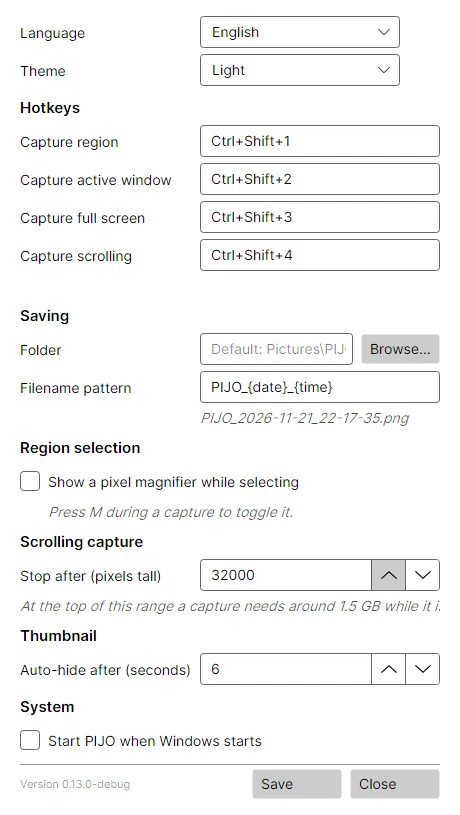
PIJO Settings showing capture hotkeys, save folder and filename pattern
Choose the save folder and naming pattern once in Settings. View full size

How to use it

  1. Capture a region, window or screen.
  2. Paste with Ctrl + V, or use the saved PNG from your screenshots folder.
  3. Open tray icon > Settings to choose another folder or change the filename pattern.

Options

Folder
Your screenshot save directory. The default is Pictures/PIJO in your Windows user profile.
Filename pattern
Use {date}, {time}, {datetime}, {year}, {month}, {day}, {hour}, {min}, {sec}, {counter} or {mode}. Use {counter:4} for a four-digit counter. Settings shows a preview.
Edited file
Changes in an open editor tab are saved automatically after a short pause.
Copy an edit
Press Ctrl + C in the editor to copy the current image again before pasting it.

Good to know

Annotations remain editable while their editor tab is open. A saved PNG is a flattened image, not a project file.