 PIJO
Capture what you need
Scrolling screenshots
Turn a long page, spreadsheet or chat into one tall image. PIJO scrolls and joins the frames for you.
The result
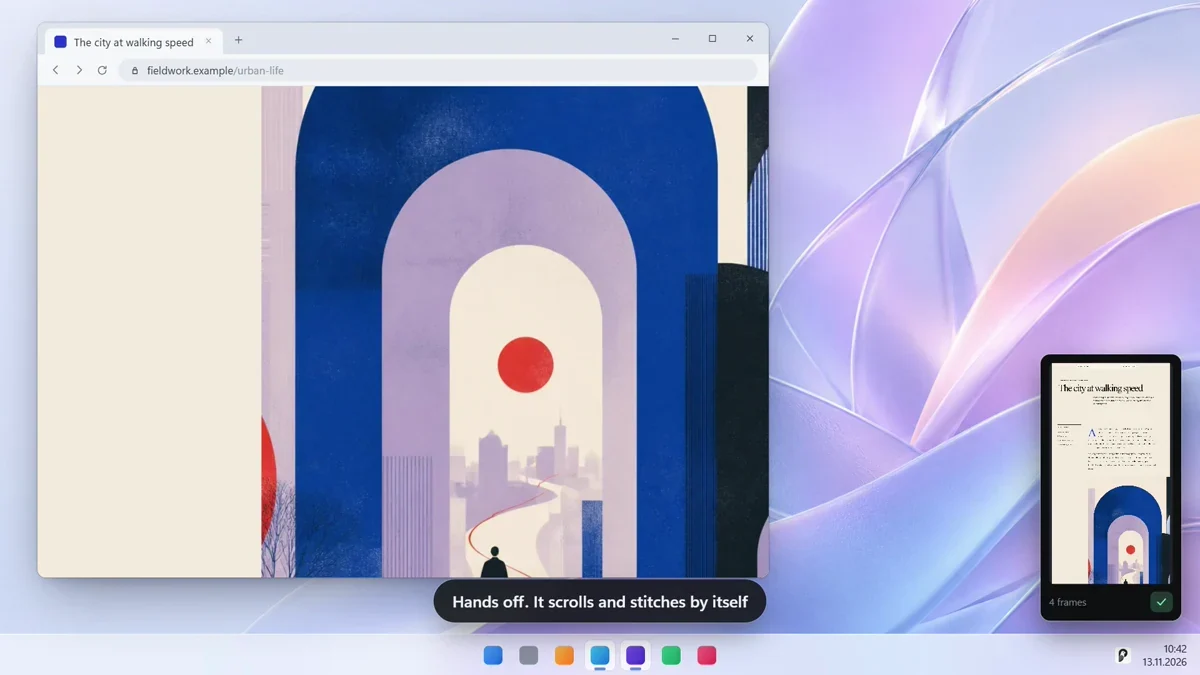
Watch it in action
How to use it
- Press Ctrl + Shift + 4.
- Click a window, or drag a rectangle around just the content you need.
- Leave the mouse still while PIJO scrolls. Press Esc or click the tick on the progress card to finish early and keep the captured portion.
Options
Good to know
Vertical scrolling only. The page stays where PIJO scrolled to. An app running as administrator may reject scrolling input.