
All features

Make the point

Spotlight the important part

Keep one area clear and dim the surrounding screenshot so the reader sees it first.

The result
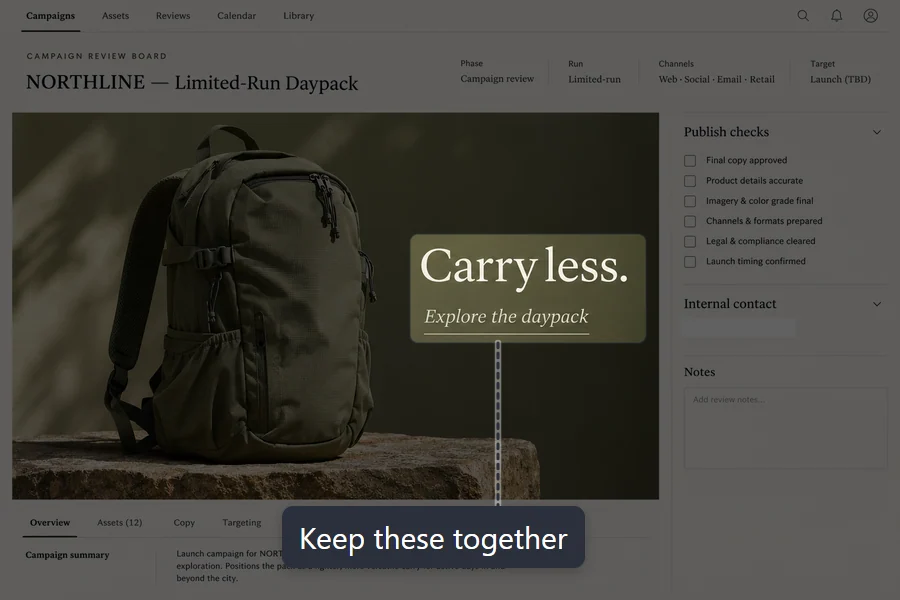
A spotlight keeps a campaign headline and button bright while the surrounding page is dimmed
The headline and button stay at their original brightness. A caption explains why they belong together. View full size

How to use it

  1. Press S in the editor and drag around the area to keep bright.
  2. Move or resize the selected spotlight until it frames the right content.
  3. Double-click to add a caption. Move the note to an open area if it covers the screenshot.

Options

Border ink
Rose, Amber, Citrus, Mint, Sky, Lilac or Graphite. These are fixed presets, with no colour picker.
Bright region
The pixels inside stay unchanged; the surroundings are dimmed.
Caption
Show or hide it. Choose an edge tooltip or a free card with a dashed leader.
Caption text
Golos Text, Georgia or Ink Free, with five sizes: XS, S, M, L and XL. Pick black or white text.

Good to know

A spotlight directs attention; it does not redact anything. The surrounding information is still visible.