 PIJO
How to add arrows and step numbers to screenshots
Use an arrow to point to one control and numbered markers to show the order of several actions. In PIJO, open Edit from the screenshot card, press A for an arrow or N for numbered steps, then add captions where the screenshot needs context.
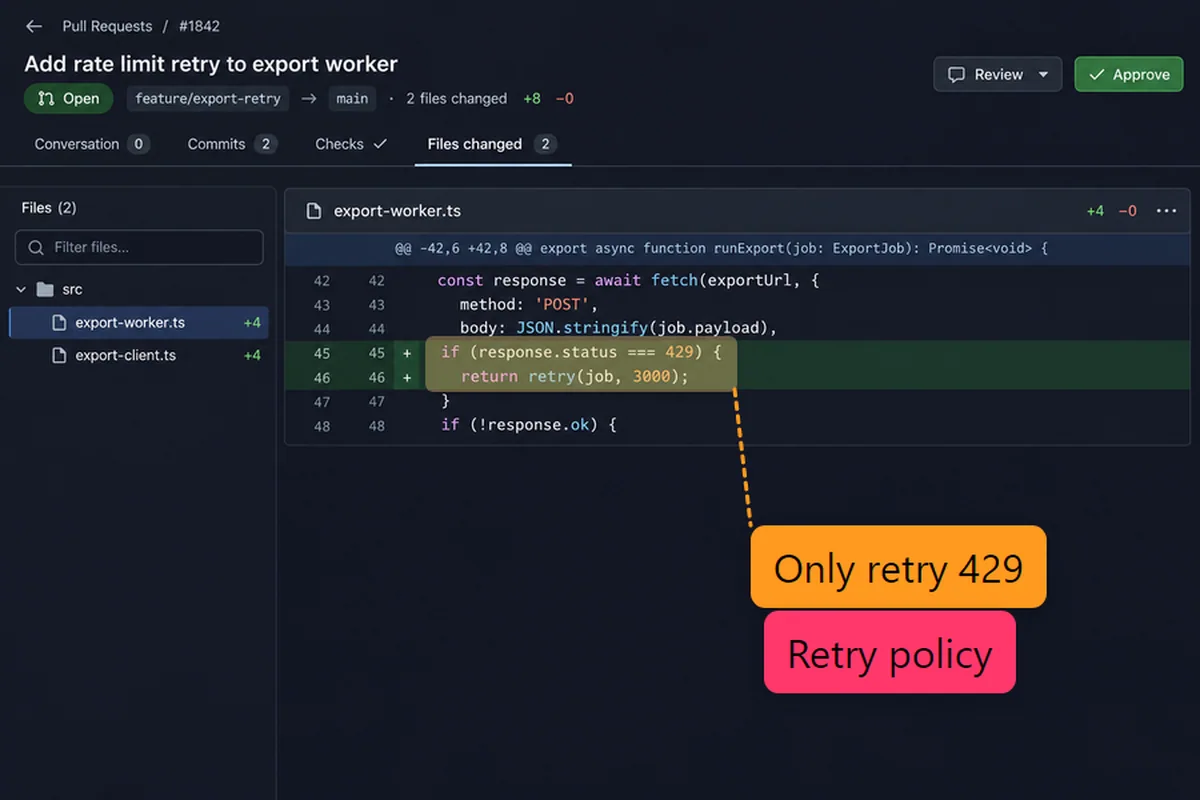
Turn a screenshot into a short instruction
- Capture just enough of the window for the reader to recognize where they are. Choose Edit on the floating card.
- Press A and draw an arrow toward a precise target. Keep the tip close to the control and its label visible.
- Press N and place the numbers in the order the reader should act. Type a short caption when the action needs a verb, such as “Choose a folder.”
- Move the caption into spare space if it covers a label. PIJO keeps the caption connected to its number with a dotted line when you drag it away.
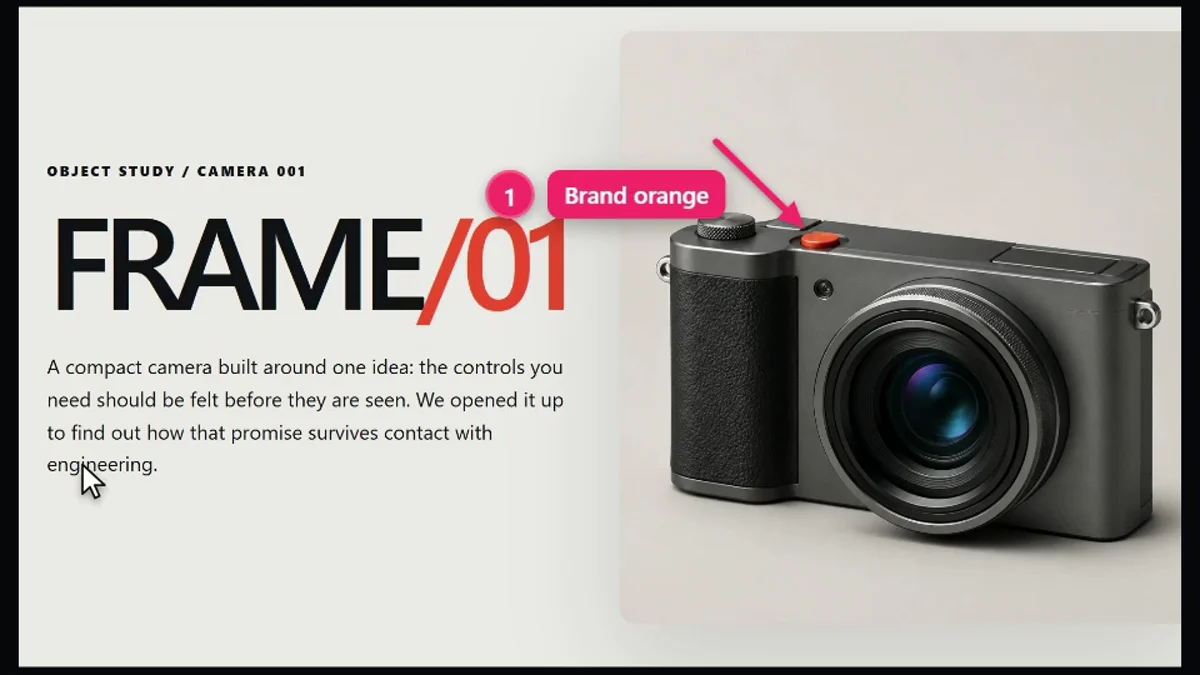
Make the order visible at the size people will read it
For a one-action tip, a single arrow can be enough. In a three-action recipe, place numbers beside the controls and put explanations in the same order. If a chat shrinks the image, check that labels and arrow tips still read at that size. Split the instruction into two images if the second screen appears only after the first click.
Where to find the equivalent tools
| Editor | Point to a control | Show a sequence |
|---|---|---|
| PIJO | Arrow tool, A | Numbered step tool, N, with optional captions |
| ShareX | Arrow in the image editor | Step tool |
| PicPick | Shapes for arrows | Stamps for number markers |
ShareX image editor guide · PicPick editor guide
Review the image you will send
Open the finished PNG and check that every number points to a visible control. If there’s an email address or private detail in view, use a solid fill and check that it covers the whole value. Explore PIJO’s annotation tools or read how to redact a screenshot.
We make PIJO. The images show PIJO in our demo environment. Details about other tools come from their published documentation.